How to Turn off Camera Sound on Android in 7 Easy Steps
To turn off your Android camera sound, first open the Camera app and check its settings for a shutter sound toggle, then switch it off. If you don’t see it, lower the System volume using the volume buttons or activate Do Not Disturb mode to silence all sounds.
You can also use automation apps like Tasker for muting automatically. Keep in mind, some regions restrict silencing shutter sounds due to legal rules, so it’s wise to understand those before proceeding.
Investigate these steps further for more detailed options.
Key Takeaways
- Open the Camera app, access Settings, and toggle off the shutter or camera sound option if available.
- Lower the system volume using the Volume Down button and adjust the System volume slider to mute the shutter sound.
- Enable Do Not Disturb mode from Quick Settings to silence all sounds including the camera shutter.
- Check regional laws as some countries like Japan and India legally require the shutter sound to remain on.
- Use third-party camera apps or automation tools like Tasker to mute the shutter sound if native options are unavailable.
Turn Off Shutter Sound in Your Camera App
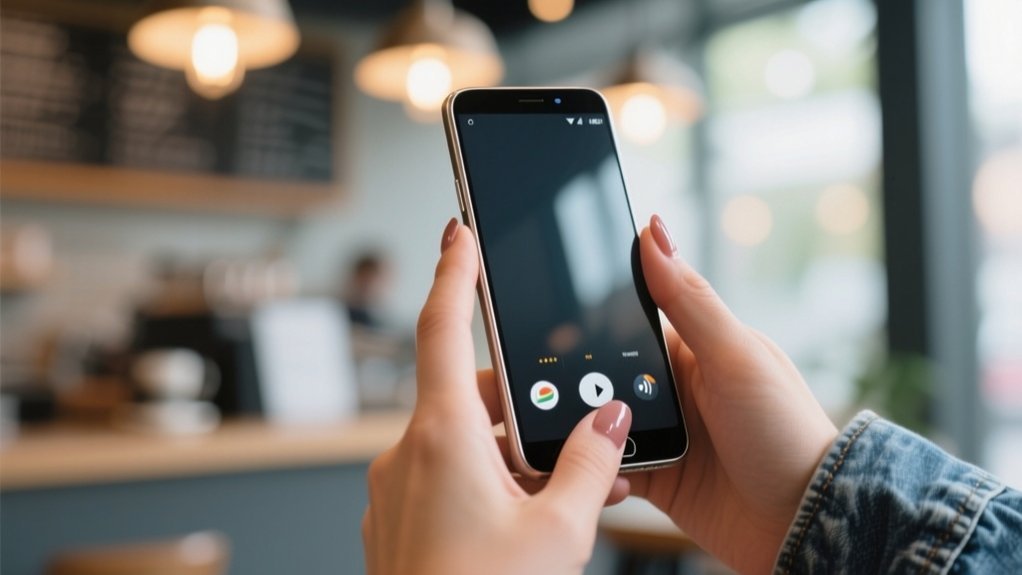
If you want to turn off the shutter sound on your Android device, start by opening the Camera app and tapping the Settings icon.
Look for an option labeled “shutter sound” or “camera sound” and toggle it off.
Find the shutter or camera sound setting and switch it off to mute your photo clicks.
On devices like the Galaxy S25 series running One UI 7, you’ll find this under Quick controls.
If you don’t see a shutter sound option, your device may not support disabling it directly. In that case, try lowering the System volume using the Volume down button, which often silences the camera sound.
Keep in mind some regions have legal restrictions against muting the shutter sound, so check local laws before disabling it.
This method helps you capture photos quietly without extra apps.
Mute Camera Shutter Sound With Volume Buttons
To mute the camera shutter sound, just start by pressing the Volume Down button right from your Android device’s Home screen.
After that, tap the three dots you’ll see in the volume menu to get to more settings.
Then, simply lower the System volume slider, and that’s it—you’ll silence the shutter noise when you take photos.
It’s pretty straightforward!
Adjust System Volume
Lower your Android’s system volume to mute the camera shutter sound quickly. Start by pressing the Volume Down button on your Home screen to open the volume pop-up.
Next, tap the three dots to access more volume settings. Here, use the System volume slider to turn the volume down to minimum. When muted, the shutter sound won’t play during photos.
This method requires no app installs or system changes, making it easy and fast.
| Step | Action |
|---|---|
| 1. Press Volume Down | Opens volume pop-up |
| 2. Tap three dots | Access additional volume settings |
| 3. Adjust System volume | Slide to minimum to mute shutter sound |
| 4. Take photo | No shutter sound will be heard |
Use Volume Down Button
When you press the Volume Down button on your Android’s Home screen, you’ll open the volume control menu.
To disable camera shutter sound quickly, keep pressing the Volume Down button until the system sounds are muted.
This action lowers the system volume, which controls the shutter sound, without affecting your ringtone or media volume.
By muting the system volume completely, you effectively disable the camera shutter sound whenever you take photos.
This method is fast and doesn’t require maneuvering through multiple settings.
Just remember, the camera shutter sound will only be silenced if the system volume is set to the lowest level.
Using the Volume Down button this way is a simple and efficient way to mute your camera shutter sound on Android.
Access Additional Volume Settings
You can mute the camera shutter sound more precisely by accessing additional volume settings. Here’s how to do it:
- Press the Volume Down button on your Home screen to open the volume controls.
- Tap the three dots at the top of the volume pop-up to access more settings.
- Find the System volume slider, which controls sounds like the camera shutter.
- Slide the System volume down to the minimum to silence the shutter sound.
This method is handy if your camera app doesn’t let you turn off the shutter noise directly.
Keep in mind, lowering the System volume will mute other system sounds too, so adjust it based on your overall sound preferences.
This guarantees you control the volume settings effectively to mute the camera sound when needed.
Silence Shutter Sound Using System Settings and Do Not Disturb
Although not all Android devices offer a direct shutter sound toggle in the Camera app settings, you can still silence the camera shutter by adjusting your system volume or enabling Do Not Disturb mode.
To mute the camera sound, press the Volume down button on your Home screen, then tap the three dots on the volume slider. From here, lower the System volume to zero. This effectively silences the shutter noise without affecting media or call volumes.
Alternatively, swipe down to open Quick Settings and activate Do Not Disturb mode. This mode suppresses all sounds, including the camera shutter.
Automate Shutter Sound Muting With Tasker
Adjusting system settings to mute your camera shutter is effective, but automating this process can save you time and effort.
Using Tasker, you can silence your camera shutter sound automatically whenever you open the camera app. Here’s how to set it up:
- Create a new profile in Tasker triggered by launching your camera app.
- Add a task to switch your phone to silent mode when the camera opens.
- Set another task to restore your previous sound settings when you exit the camera.
- For advanced control, import XML files like `camera_sound.prf.xml` and `camera_sound.tsk.xml` into Tasker’s directory.
This approach mutes the camera shutter without disrupting other sound settings, giving you a seamless photo-taking experience.
Alternative Apps and Advanced Methods to Silence Shutter Sound
When muting the camera shutter sound manually feels cumbersome, alternative apps like Enforced Stream Silencer can simplify the process with just a single checkbox. This app disables the shutter sound effectively with minimal setup, making it a quick solution.
For more advanced control, you can use Tasker to automate silent mode when launching your camera app and revert it afterward. Importing additional XML files like `camera_sound.prf.xml` and `camera_sound.tsk.xml` lets you customize these settings even further.
Many users appreciate Tasker’s versatility, as it automates various phone features based on different triggers beyond just silencing the shutter sound.
Regional and Legal Rules for Muting Shutter Sound
Before you try muting your camera’s shutter sound, it’s a good idea to check the regional laws where your device is registered.
Some countries actually require the shutter sound to be on by law, so it’s important to be aware of that.
Also, keep in mind that IMEI-based restrictions often enforce these rules no matter where you’re currently located.
Knowing these legal boundaries can help you avoid fines or other penalties when you want to silence the shutter sound.
Regional Sound Regulations
Although you might want to mute your Android camera’s shutter sound for privacy or convenience, some regions legally require the sound to remain on.
Here’s what you need to know about regional sound regulations:
- Countries like Japan and India mandate that cameras emit a shutter sound to prevent unauthorized photos.
- Some Android devices sold in these regions disable the option to mute the shutter sound in software.
- Attempting to silence the shutter sound by modifying your device’s firmware may violate local laws and lead to penalties.
- Always check your area’s legal requirements before trying to turn off the shutter sound on your Android.
Following these guidelines guarantees you respect privacy laws while using your camera responsibly.
Legal Compliance Considerations
Understanding how camera shutter sound laws impact your device helps guarantee you stay within legal boundaries. Legal compliance considerations are essential since some countries mandate a shutter sound to protect privacy.
Before muting your camera sound, check local regulations to avoid fines or legal trouble.
| Country | Shutter Sound Requirement | Reason | Can You Mute? | Notes |
|---|---|---|---|---|
| Japan | Yes | Privacy protection | No | Sound always enabled |
| South Korea | Yes | Privacy protection | No | Mandatory shutter sound |
| USA | No | Varies by state | Yes | Often can mute |
| EU Countries | No | Varies | Yes | Check specific regulations |
| Other Regions | Varies | Privacy & local laws | Depends | Consult local legal guidance |
Always respect these rules for legal compliance considerations.
IMEI-Based Restrictions
When your device’s IMEI is registered in regions like Japan or South Korea, it often disables your ability to mute the camera shutter sound to comply with local laws.
These imei-based restrictions are designed to prevent silent photography for privacy reasons. Here’s what you should know:
- Your phone’s IMEI links it to a specific country, enforcing regional sound rules automatically.
- In places like India, some devices also enforce shutter sounds due to their IMEI registration.
- Manufacturers lock mute features to meet legal requirements, limiting user control.
- Rooting your device to bypass imei-based restrictions can cause issues with apps like banking services.
Understanding these rules helps you stay compliant while exploring legal options to manage camera sounds.
Troubleshooting Common Issues With Silencing Camera Shutter Sound
If you can’t find an option to disable the camera shutter sound in your Android Camera app, try lowering the system volume using the hardware buttons. This often mutes the shutter sound effectively.
If this doesn’t work, check if your region enforces laws requiring the shutter sound; in such cases, silencing it might be impossible.
Some regions legally require shutter sounds, making it impossible to mute the camera noise.
For rooted devices, modifying system audio files could help, but this method can be tricky and mightn’t always succeed.
Alternatively, you can use automation apps like Tasker to create a profile that mutes the shutter sound whenever you open the Camera app. Always verify you’re using these methods responsibly and within legal boundaries.
If problems persist, updating your Camera app or phone software can sometimes resolve sound control issues.
Frequently Asked Questions
Does Muting Camera Sound Affect Video Recording Audio?
No, muting the camera sound won’t affect video recording audio.
When you silence the shutter sound, it only stops the noise during photo capture. Your videos will still record audio as usual.
To be sure, test recording a video after muting the shutter sound.
Also, check your camera app’s audio settings if you want more control since some apps manage sound independently from the phone’s main volume settings.
Can Third-Party Apps Override System Shutter Sound Settings?
Yes, third-party apps can sometimes sneak past your phone’s shutter sound like a silent ninja.
Apps like Open Camera might let you mute the shutter independently of your system settings. However, this isn’t guaranteed everywhere.
Some devices or regions lock that sound in place for legal reasons. So, you’ll want to try different apps and check your device’s permissions, but don’t be surprised if the sound sticks around.
Is It Possible to Schedule Camera Sound Muting Automatically?
Yes, you can schedule camera sound muting automatically using apps like Tasker.
Just create a profile that triggers silent mode whenever you open your camera app and set it to revert when you close the app.
You can also customize schedules or conditions for muting.
Importing specific XML files can simplify this setup.
This way, your phone mutes only during photography, keeping your experience smooth and discreet without manual adjustments each time.
Will Turning off Camera Sound Reduce Battery Usage?
Turning off your camera sound won’t markedly reduce battery usage because the shutter sound uses very little power.
Instead, focus on lowering your screen brightness, closing unused apps, and managing background processes to save battery life.
While muting the camera can make your experience quieter, it won’t extend your battery significantly.
To improve battery longevity, adjust settings related to display and connectivity rather than relying on audio controls.
How to Silence Camera Sound on Android Tablets?
To silence the camera sound on your Android tablet, open the Camera app and check its settings for a shutter sound toggle.
If you don’t find one, lower your system volume to the minimum using the volume buttons.
Enabling “Do Not Disturb” mode also mutes the shutter sound.
For more control, consider third-party camera apps or automation tools like Tasker to silence the sound whenever you take photos.
Conclusion
Silencing your shutter sound swiftly sharpens your shooting experience. By toggling your camera settings, tweaking volume controls, or tapping into system silence modes, you take total control.
Trust tools like Tasker or alternative apps to automate and amplify your quiet clicks. Remember regional rules and resolve recurring rumbles with troubleshooting tips.
Stay savvy, stay silent, and snap smoothly. Your serene shots start with simple steps and smart solutions.