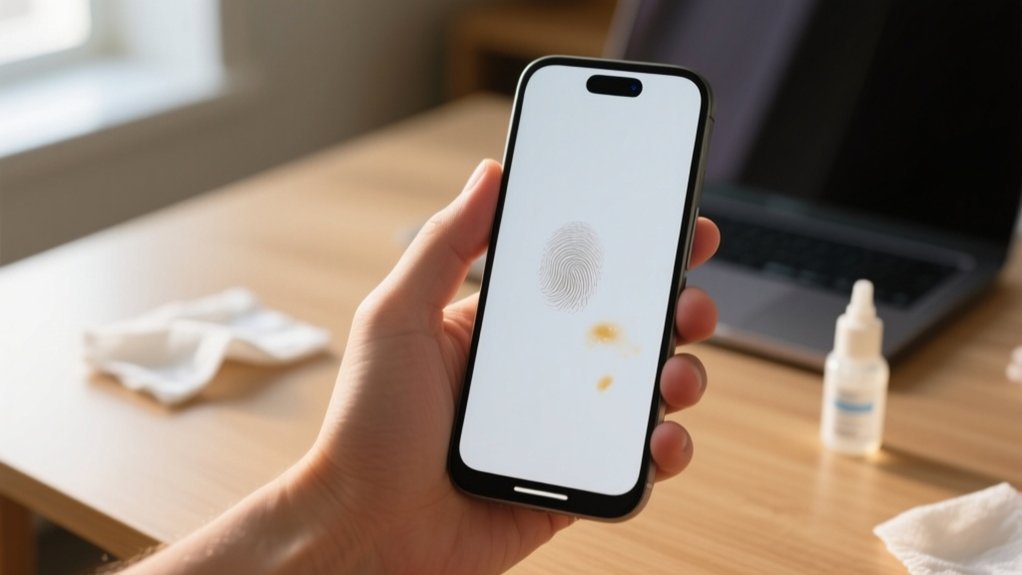
Why Is My Front Camera Blurry and How Can I Fix It Fast?
Your front camera is blurry likely due to dirt, smudges, or obstructions like cases or screen protectors blocking the lens. You can fix it fast by gently cleaning the lens with a microfiber cloth, restarting the Camera app, or updating your iPhone’s software.
If those don’t help, hardware issues might be the cause, requiring professional repair. Keep exploring to uncover easy ways to clear up your photos and prevent blur in the future.
Key Takeaways
- Clean the front camera lens gently with a soft microfiber cloth to remove dirt, smudges, or fingerprints causing blurriness.
- Restart the Camera app or force restart your iPhone to clear temporary glitches affecting focus and image quality.
- Check for and install any available iOS updates to fix camera bugs and improve performance.
- Remove obstructive phone cases or misaligned screen protectors that may block or distort the front camera lens.
- If blurriness persists despite cleaning and updates, consider contacting Apple Support for possible hardware issues or repairs.
Why Is My iPhone Front Camera Blurry?
If your iPhone front camera looks blurry, several common issues might be to blame.
Many iPhone 14 users have reported their front camera blurry, often due to simple causes. Dirt or smudges on the lens can reduce clarity, though we’ll cover that in detail later.
Many iPhone 14 users experience blurry front cameras, often caused by dirt or smudges on the lens.
Cases that don’t fit properly may partially block the lens, causing blurry photos. Software glitches also play a role; outdated iOS versions can affect camera performance.
You can improve image quality by keeping your iPhone updated and checking for obstructions.
If your front camera blurry problem continues after these steps, it might indicate a hardware fault.
In that case, contacting Apple Support or a professional repair service would be the next best move to restore clear selfies.
How Dirt and Smudges Affect Your Front Camera Quality
If your front camera is coming out blurry, it could be because of dirt and smudges on the lens.
These little particles block the light and mess with the autofocus, which makes your pictures less clear.
So, a quick and easy fix is to clean the lens regularly.
Just grab a soft microfiber cloth and gently wipe it down.
Doing this keeps your camera sharp and working like it should.
Impact Of Lens Smudges
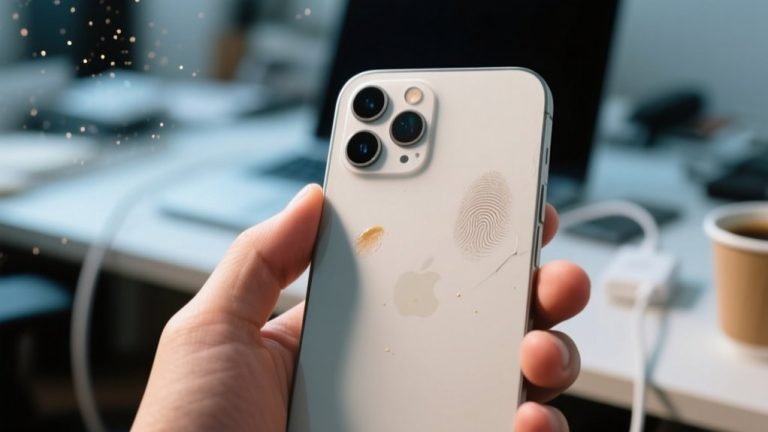
A single fingerprint or speck of dust on your front camera lens can blur your selfies and video calls, reducing image clarity and detail.
Even minor smudges disrupt your camera’s focus, making images look hazy or fuzzy. Since the front camera depends on a clear lens to capture sharp details, any grime interferes with its performance.
You mightn’t notice dirt buildup immediately, but it gradually lowers photo quality.
To keep your front camera lens performing at its best, clean it regularly with a soft microfiber cloth.
This simple step prevents smudges from accumulating and guarantees your selfies and video chats stay crisp and clear.
Taking care of your camera lens is essential for consistently sharp and vibrant images.
Dust Effects On Clarity
Smudges and dust don’t just sit on your front camera lens. They interfere with how light enters, scattering it and causing your photos to lose sharpness.
Even a small amount of dirt can create dust effects on clarity, making your camera struggle to focus properly. This often results in a blurry front camera, especially during selfies or video calls.
Fingerprints, grease, and moisture add a thin film that further diminishes image quality. When light scatters unevenly, your pictures lose detail and appear hazy.
Checking for obstructions like dirt or screen protectors is essential because they block the camera’s ability to capture clear images.
Understanding how dust affects clarity helps you recognize why your front camera isn’t performing at its best.
Cleaning Techniques For Camera
When dirt or fingerprints cover your front camera lens, they blur your photos and disrupt focus. To keep your camera sharp and clear, follow these cleaning techniques for camera maintenance:
- Use a soft microfiber cloth to gently wipe the lens. Avoid harsh materials that can scratch the surface.
- Never touch the lens with your fingers. Oils from your skin leave smudges that reduce image quality.
- Regularly inspect the lens for scratches or cracks. Physical damage can permanently impair camera performance.
Could Your Phone Case or Screen Protector Be Obstructing the Lens?
Could your phone case or screen protector be the culprit behind your blurry front camera? A poorly fitting phone case or misaligned screen protector can easily block part of the lens, causing blurry images.
Some screen protectors accidentally cover the camera area, so it’s essential to check their placement. Cases with reflective materials or thick edges might also interfere with focus, distorting your photos.
Screen protectors and cases can block or distort your front camera—check their fit to avoid blurry selfies.
To pinpoint the issue, remove your phone case and screen protector temporarily and test the camera’s clarity. If the images sharpen, you’ve found the source.
Regularly testing your camera without these accessories helps catch obstructions early. Ensuring your phone case and screen protector fit perfectly and don’t cover the lens will keep your front camera clear and ready for sharp selfies.
How to Clean Your iPhone Front Camera Lens Properly
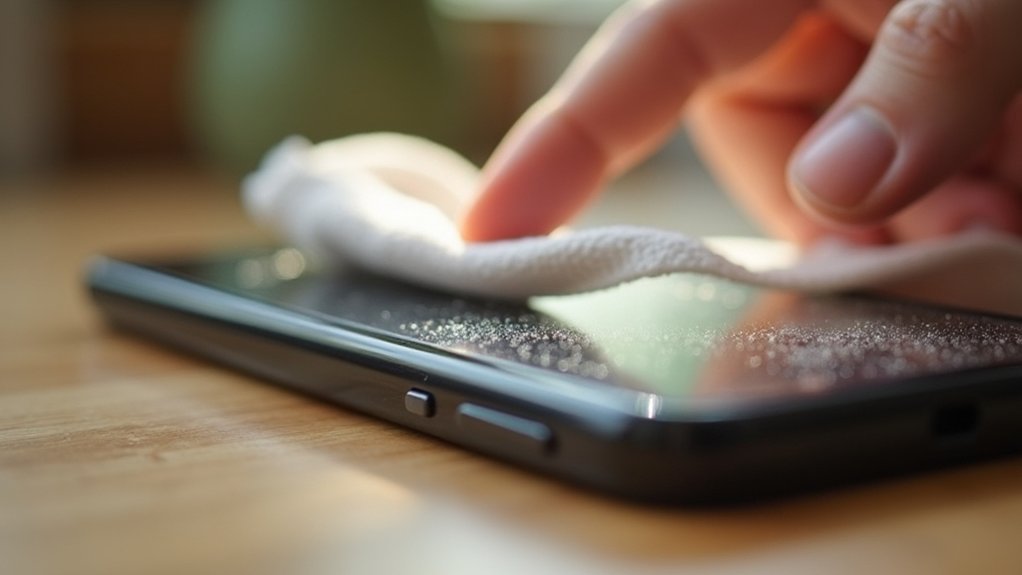
To keep your iPhone’s front camera sharp, just grab a soft microfiber cloth and gently wipe away any dirt or smudges.
It’s best to avoid touching the lens with your fingers since oils and scratches can easily build up.
Make cleaning the lens a regular habit, and you’ll enjoy clear, blur-free selfies every time!
Use Microfiber Cloth
One of the simplest and most effective ways to clear up a blurry front camera is by using a microfiber cloth designed for lenses. A microfiber cloth to gently clean your iPhone’s front camera lens can remove dust and smudges without scratching the surface.
Follow these steps for the best results:
- Use a soft microfiber cloth to gently wipe the lens in a circular motion, covering the entire surface.
- Avoid rough materials like paper towels that can create scratches and worsen image quality.
- Clean your lens regularly, especially after outdoor use, to maintain clear, sharp photos.
Make sure your hands are clean before you start to prevent transferring oils or dirt onto the lens during cleaning.
Avoid Fingerprints And Smudges
Keeping your iPhone’s front camera lens free from fingerprints and smudges is key to capturing sharp images. To avoid fingerprints and smudges, never touch the lens with your fingers directly. Oils and moisture leave marks that blur photos.
Instead, use a soft microfiber cloth for gentle cleaning. Check the lens often for dirt or smudges, especially after outdoor use.
| What to Do | What to Avoid |
|---|---|
| Use microfiber cloth | Using rough materials |
| Clean frequently | Touching lens with fingers |
| Inspect lens often | Ignoring dust or smudges |
Following these steps helps maintain clarity and prevents permanent damage like scratches or cracks.
Regular Lens Maintenance
Even if you’re careful, dirt and smudges can accumulate on your iPhone’s front camera lens, dulling your photos.
Regular lens maintenance is key to keeping your images sharp. Here’s how to clean your lens properly:
- Use a soft microfiber cloth to gently wipe away dirt, dust, and smudges without scratching the surface.
- Avoid touching the lens with your fingers to prevent oils and grime from causing blurriness.
- Regularly inspect the lens for cracks or scratches, and remove any case or screen protector that might obstruct it.
Cleaning your lens frequently, especially after outdoor use, guarantees your front camera stays clear and your selfies look crisp every time.
Why Restarting the Camera App Can Fix Blurriness
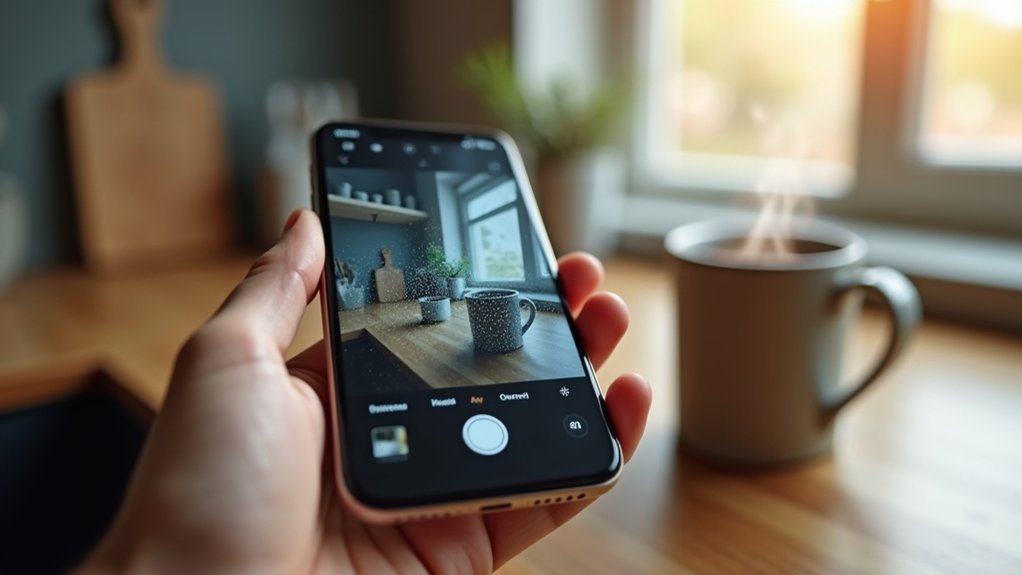
Although it might seem simple, restarting the Camera app can quickly clear temporary glitches that cause blurry images. When you restart the Camera app, you refresh its functionality and reset its memory.
This process often resolves focus tracking problems or issues with image clarity that result from minor software bugs. Closing and reopening the app fundamentally gives it a fresh start, helping it operate smoothly again.
Make restarting the Camera app a go-to quick fix before trying more complex solutions. However, if your camera remains unresponsive to touch focus after restarting, it may signal deeper software problems that need further attention.
Regularly restarting the Camera app is a practical, fast way to improve your front camera’s performance without extra hassle.
How Force Restarting Your iPhone Improves Camera Performance
If your front camera is still blurry, try force restarting your iPhone.
This simple step resets the camera app and clears out the system cache.
It’s a quick way to get rid of those temporary glitches that can mess with focus and image quality.
You’ll often notice better camera performance right after your device refreshes its memory like this.
Force Restart Benefits
A force restart can quickly clear temporary software glitches that might cause your iPhone’s front camera to take blurry pictures. This simple step rejuvenates your device’s memory and system processes, resolving issues caused by overloaded cache or app conflicts.
Here are the key force restart benefits for your camera:
- Clears temporary glitches that affect camera clarity.
- Resolves app conflicts that slow down camera performance.
- Helps maintain smooth operation by rejuvenating system processes.
To force restart, press and quickly release Volume Up, then Volume Down, and hold the Side button until the Apple logo appears. Many users notice immediate improvements in camera function after doing this.
Regularly using this method can keep your iPhone running smoothly, ensuring your front camera delivers clear, sharp images every time.
Camera App Reset
When you force restart your iPhone, you effectively reset the camera app by clearing out temporary glitches that can cause blurry or unresponsive images.
This quick process refreshes your device’s memory and resolves minor errors affecting camera apps, especially issues like unresponsive focus or blurred shots.
To force restart, press and release the Volume Up button, then the Volume Down button, and hold the Side button until the Apple logo appears.
Many users notice improved camera performance right after this reset.
If your front camera’s blurry, a force restart can be a fast, effective fix.
Regularly restarting your iPhone also helps prevent camera app problems, ensuring your photos stay sharp and your device runs smoothly.
System Cache Clearance
Although it might seem simple, force restarting your iPhone clears the system cache, which often resolves temporary software glitches affecting your front camera’s clarity.
This quick fix refreshes the device’s memory, improving the camera module’s responsiveness and focus accuracy. Here’s how it helps:
- Eliminates unnecessary background processes that may interfere with camera performance.
- Fixes minor blurriness by resetting software controlling the camera module.
- Boosts overall device speed, which supports smoother camera app operation.
To force restart an iPhone 14, press and release Volume Up, then Volume Down, and hold the Side button until the Apple logo appears.
Many users find this clears blurriness without complex troubleshooting, making it a fast and effective step to restore your front camera’s sharpness.
How to Check for Software Updates to Fix Camera Focus
Since software updates often include fixes for camera bugs, you should regularly check your iPhone for new versions.
To do this, open the Settings app, tap General, then select Software Update.
If an update is available, tap Download and Install while connected to Wi-Fi for a smooth process.
Keeping your iPhone updated is vital because these software updates frequently address issues affecting camera focus and image clarity.
Keeping your iPhone updated ensures camera focus and image clarity issues are often resolved through software improvements.
After installing the update, restart your iPhone to guarantee all changes take effect and to refresh system processes that might impact camera performance.
Regularly checking for software updates helps maintain your device’s overall performance and can quickly resolve blurry front camera problems caused by software glitches.
When to Reset iPhone Camera Settings to Fix Blurry Images
If your front camera keeps producing blurry images even after updating iOS, it might be time to reset your camera settings.
Don’t worry, this won’t erase any of your personal data.
Just head over to Settings, then tap on General, scroll down to Reset, and choose “Reset All Settings.”
This will restore your camera preferences back to their defaults.
Once you’ve done that, give your camera a test to see if the focus has improved.
If it’s still blurry, then you can start looking into other potential fixes.
Signs To Reset
When should you reset your iPhone camera settings to fix blurry front camera images?
Resetting the iPhone camera settings can clear up software glitches causing persistent blurriness. Consider a reset if you notice these signs:
- Your front camera consistently fails to focus or produce clear images, even after cleaning the lens and removing accessories.
- The focus box becomes unresponsive or images remain blurry across all apps.
- Regular software updates haven’t improved camera performance, indicating settings may need manual renewal.
If any of these apply, resetting the camera settings can restore factory defaults and improve image clarity.
This step helps resolve misconfigurations that software updates mightn’t automatically fix, giving your front camera a fresh start without hardware intervention.
Resetting Camera Settings
Noticing persistent blurriness or unresponsive focus on your front camera often calls for resetting the camera settings. This process clears any custom adjustments or software glitches that might be causing poor image quality.
To reset the camera settings on your iPhone, go to Settings → Camera, then tap “Reset Settings.” This action restores the camera to its default configuration, improving focus accuracy and overall performance.
Regularly resetting camera settings helps prevent issues caused by accumulated software bugs over time. It’s a straightforward first step in troubleshooting blurry images before trying more complex fixes or consulting a professional.
If blurriness continues after resetting, it could signal hardware problems needing expert evaluation.
Resetting camera settings often provides a quick, effective solution to restore clear front camera photos.
Post-Reset Troubleshooting
Although resetting your iPhone’s camera settings often clears up blurriness, you should consider this step after trying simpler fixes like cleaning the lens or closing background apps.
Post-reset troubleshooting helps guarantee your camera works smoothly once settings return to default.
Here’s what to do next:
- Update your iPhone to the latest iOS version. Updates often fix camera bugs.
- Check for and remove any third-party camera apps that might interfere with default settings.
- Test the camera again; if blurriness persists, it could indicate a hardware problem.
At this point, seeking professional repair is wise to diagnose and fix physical issues.
Post-reset troubleshooting balances software fixes with knowing when to get expert help, making certain you restore clear front camera photos quickly and effectively.
How Third-Party Apps Can Cause Front Camera Focus Problems
Several third-party camera apps can interfere with your front camera’s focus by conflicting with the default settings or overwhelming the device’s memory.
These apps may not be fully optimized for your phone’s hardware, leading to inconsistent performance and blurry images.
When third-party apps overload the camera cache, you might notice glitches that reduce image clarity.
If you’re experiencing focus issues, try uninstalling or disabling these apps to see if that resolves the problem.
Running your device in Safe Mode can also help identify if a third-party app is causing the front camera to malfunction, as Safe Mode only allows essential system apps to operate.
Paying attention to how third-party apps affect your camera can save you time and improve your photo quality.
Try Manual Focus Apps to Spot Camera Issues
If uninstalling third-party apps doesn’t clear up your front camera’s focus issues, try using manual focus apps like ProCam X or Halide. These apps let you control focus settings precisely, which helps you spot whether blurriness comes from software or hardware.
Here’s how manual focus apps can help:
- Adjust focus manually to test if your camera locks onto subjects at different distances.
- Use focus peaking to see exactly which parts of the image are sharp.
- Capture RAW images to analyze clarity and sharpness under various focus settings.
What Hardware Damage Means for Your Front Camera
When your front camera shows persistent blurriness despite software fixes, hardware damage might be the cause. Drops can misalign the focus motor, while a faulty optical image stabilization (OIS) system can blur your shots. Moisture inside the lens or corrosion also degrade image quality. Even small cracks or scratches on the lens affect clarity. Sometimes, the camera module detaches, causing focus problems.
| Hardware Damage Type | Impact on Front Camera |
|---|---|
| Drop/Impact | Misaligned focus motor |
| OIS Malfunction | Shaky, unclear photos |
| Moisture Damage | Fogged lens, corrosion |
| Detached Camera Module | Focus issues, requires repair |
| Lens Cracks/Scratches | Reduced image clarity |
Check for these signs to understand your camera’s hardware status and fix blurriness effectively.
When to Contact Apple Support for Front Camera Repair
Although basic troubleshooting like cleaning the lens or removing cases often solves minor camera issues, persistent blurriness calls for professional help.
You should contact Apple Support if:
- The front camera remains blurry even after cleaning and removing cases, or updating to the latest iOS.
- You notice physical damage or misalignment affecting camera performance.
- You need guidance on warranty or AppleCare coverage for possible repairs.
Before reaching out, document the issue and your troubleshooting steps to help Apple Support diagnose the problem quickly.
Apple Support can provide expert advice, repair options, and warranty information to get your front camera working clearly again.
Apple Support offers expert guidance, repair solutions, and warranty details to restore your front camera’s clarity.
Don’t hesitate to seek their help when simple fixes don’t work, ensuring you avoid further damage or frustration.
Tips to Prevent Future iPhone Front Camera Blurriness
To keep your iPhone’s front camera sharp and clear, you’ll want to adopt a few simple habits.
Regularly clean the front camera lens with a soft microfiber cloth to remove dust, fingerprints, and smudges that cause blurriness.
Avoid thick or ill-fitting phone cases that might block the front camera or affect its focus.
Make sure your iPhone runs the latest iOS version, as updates often fix camera bugs.
Store your device in clean, dry places to prevent moisture and dust buildup around the front lens.
Periodically check the front camera area for debris or any protective films that could obstruct the lens.
Following these tips will help keep your front camera crisp and ready for clear selfies and video calls.
Why the iPhone Rear Camera Looks Sharper Than the Front
Keeping your front camera clean and updated improves image quality, but you might still notice the rear camera produces sharper photos. That’s because the rear camera is built differently, designed for high-quality shots, while the front focuses on convenience.
Here’s why the rear camera looks clearer and the front might appear blurry:
- The rear camera has a higher resolution and larger sensor, capturing more detail than the front.
- It features advanced optics and better image stabilization, reducing blur in various lighting.
- The front camera has a smaller aperture and less sophisticated autofocus, often causing blurry selfies, especially at a distance.
Understanding these differences helps you manage expectations and troubleshoot blurry front camera shots effectively.
Frequently Asked Questions
Can Temperature Changes Cause My Front Camera to Become Blurry?
Yes, temperature changes can cause your front camera to become blurry.
When you move between hot and cold environments, condensation or moisture can form inside the lens, fogging it up and messing with focus.
Also, extreme temperatures can make the camera’s internal parts expand or contract, disrupting alignment.
To fix this fast, let your phone adjust to room temperature before using the camera, and gently clean the lens if needed.
Does Using Night Mode Affect Front Camera Clarity?
Of course, Night Mode always makes your front camera crystal clear if you enjoy soft focus and motion blur!
It uses longer exposures to brighten dark scenes but can blur fast movements and reduce sharpness in good lighting.
So, if you want crisp selfies, turn off Night Mode when there’s enough light.
This simple switch helps your camera focus better and keeps your images sharper and clearer, no magic required.
How Does Low Light Impact Front Camera Focus?
Low light makes your front camera struggle to focus because it doesn’t get enough light to capture clear details.
Without enough light, autofocus slows down or fails, causing blurry or grainy photos.
Since front cameras often lack advanced stabilization, even slight movements blur shots more easily.
To fix this, add extra lighting or use night mode if your phone has it. Both help your camera focus better and produce sharper images.
Can a Software Update Ever Worsen Front Camera Quality?
About 30% of users report camera issues after software updates.
Yes, a software update can worsen your front camera quality. Updates sometimes introduce bugs or change settings that affect focus and clarity.
If you notice blurriness right after updating, check for patches or roll back the update if possible.
Keep monitoring your camera’s performance and report any problems to help developers fix them quickly.
Are There Specific Apps Recommended to Enhance Front Camera Sharpness?
You can try apps like ProCam X and Halide to manually adjust your front camera’s focus for sharper images.
Camera improvement apps with AI scene optimization also help by automatically improving settings.
For post-capture sharpening, Adobe Lightroom offers great tools to improve clarity.
Don’t forget to update these apps regularly to benefit from new features and stability improvements that elevate your front camera’s performance.
Conclusion
Blurry front camera frustrations? Fixing it fast is feasible! First, focus on cleaning. Clearing dirt, dust, and smudges can dramatically improve image clarity.
Follow up by fiddling with your phone case or screen protector to guarantee nothing’s blocking your lens. If issues persist, restarting your camera app might save the day.
But if hardware hiccups haunt you, don’t hesitate to contact Apple support. Stay sharp by safeguarding your lens and snapping stunning selfies every time!