Best iPhone Camera Settings for Perfect Selfies
Taking a good selfie is no longer just about pointing the camera and tapping the screen. With the right tweaks, your iPhone can capture photos that look sharper, more natural, and better lit without needing extra apps or heavy editing. Small adjustments inside the camera can make a big difference in how your face, skin tone, and background appear.
Many people don’t realize that the front camera has powerful built-in options designed to improve image quality. These settings help control lighting, framing, and clarity, making selfies look more balanced and true to life. Learning how they work gives you more control over your final photo.
Understanding the iphone camera setting for selfie allows you to highlight your best features while avoiding common issues like washed-out skin or blurry details. It also helps you adapt to different environments, whether you’re indoors, outdoors, or in low light.
Once these settings become familiar, taking selfies feels more intentional and less like guesswork. The result is photos that reflect how you actually look and feel in the moment.
How the iPhone Front Camera Works
The iPhone front camera, often referred to as the TrueDepth camera, is designed to do more than just take photos. It uses advanced sensors to analyze depth, lighting, and facial details in real time. This system helps with features like Portrait mode, Face ID, and more accurate exposure, making selfies look more refined straight from the camera.
When comparing the front camera to the rear camera, the main difference lies in hardware power and flexibility. The rear camera usually has larger sensors, better low-light performance, and more lens options. The front camera, while slightly limited in hardware, relies heavily on software processing to enhance skin tones, sharpness, and background separation.
This is exactly why settings matter more for selfies. Since the front camera depends on software optimization, adjusting the right options can dramatically change the final result. Proper settings help avoid over-smoothing, poor lighting, or distorted framing, ensuring selfies look natural and well-balanced in any situation.
Best iPhone Camera Settings for Selfies
Getting consistently good selfies isn’t about filters or editing—it starts with using the right camera settings. The iPhone front camera is heavily software-driven, which means small adjustments can dramatically improve how your selfies look. From framing and exposure to depth and lighting, these settings help you capture selfies that look natural, balanced, and true to real life across different environments.
Enable Mirror Front Camera
The mirror front camera option changes how your selfie is saved compared to how you see yourself on the screen. By default, the iPhone flips selfies after they’re taken, which can make the final image look unfamiliar. Enabling this setting keeps the photo exactly as it appears in the preview, making it feel more natural and comfortable.
To turn it on, go to Settings → Camera → Mirror Front Camera and toggle it on. Once enabled, your selfies will match what you see while framing the shot. This is especially helpful for people who are used to seeing themselves in mirrors, which is how most of us recognize our own faces daily.
Mirrored selfies often feel more authentic because facial features appear in the orientation your brain expects. Subtle asymmetries in your face won’t feel exaggerated, and poses tend to look more intentional. This setting is particularly useful for selfies that include text on clothing, backgrounds, or hand gestures, since everything appears correctly oriented.
For content creators and casual users alike, mirrored selfies reduce the need to retake photos simply because something feels “off.” It streamlines the process and builds confidence, helping you focus more on expression and lighting rather than worrying about flipped results.
Turn On Smart HDR
Smart HDR is one of the most important settings for improving selfie quality, especially in challenging lighting conditions. It works by capturing multiple frames at different exposures and blending them into one balanced image. This helps preserve detail in both bright areas and shadows without making the photo look unnatural.
For selfies, Smart HDR is particularly effective at improving skin tones while keeping backgrounds visible. It prevents faces from looking washed out when standing near windows or outdoors and avoids harsh shadows that can make skin look uneven. The result is a more balanced, lifelike image with better color accuracy.
There are times when Smart HDR shines the most, such as outdoor selfies, backlit scenes, or high-contrast environments. It ensures your face remains properly exposed even when the background is bright. Indoor selfies with mixed lighting also benefit, as HDR smooths transitions between light and dark areas.
However, Smart HDR may not always be ideal in controlled lighting or when you want a more dramatic, shadow-heavy look. In these cases, turning it off can give you more contrast and mood. Understanding when to use Smart HDR—and when to disable it—helps you maintain creative control over your selfies.
Use Portrait Mode Correctly
Portrait mode adds depth to selfies by blurring the background, creating a professional-looking separation between you and your surroundings. While it’s powerful, it requires proper setup to avoid common mistakes like uneven blur or soft edges around the face.
One of the most important factors is the depth setting, often shown as an f/stop. Lower f-numbers create stronger background blur, while higher numbers keep more detail. For selfies, an f/stop between f/2.8 and f/4.5 usually looks the most natural, keeping facial features sharp without overly artificial blur.
Distance from the camera also plays a major role. Holding the phone too close can distort facial proportions, while being too far may reduce depth accuracy. An arm’s-length distance is ideal, allowing the camera to detect facial contours correctly and apply smooth background separation.
Common portrait selfie mistakes include busy backgrounds, low lighting, and extreme angles. Portrait mode performs best with clean backgrounds and even light on your face. Paying attention to these details ensures the depth effect enhances your selfie instead of distracting from it.
Adjust Exposure Manually
Automatic exposure doesn’t always get it right, especially for selfies in bright or uneven lighting. Manually adjusting exposure gives you control over how light or dark your selfie appears, helping you avoid washed-out skin or overly dark shadows.
To adjust exposure, tap on your face in the camera preview and slide the exposure icon up or down. Sliding down slightly often improves selfies by protecting highlights and keeping skin tones natural. This simple adjustment can instantly make your photo look more polished.
Manual exposure is especially useful in outdoor selfies, where bright sunlight can cause overexposure. Lowering exposure prevents blown-out highlights and keeps facial details intact. Indoors, slightly increasing exposure can brighten your face without relying on flash, which often looks harsh.
The key is subtlety—small exposure changes work best. Once you get used to adjusting it quickly, manual exposure becomes second nature and significantly improves selfie consistency across different lighting conditions.
Enable Grid for Better Framing
The grid feature helps you compose selfies more intentionally by dividing the screen into thirds. This visual guide supports better framing, balance, and alignment, making selfies look more professional and less accidental.
Using the rule of thirds, you can position your eyes along the top horizontal grid line instead of centering your face. This creates a more dynamic composition and avoids awkward headroom. It also helps maintain consistent framing across multiple selfies.
The grid is especially useful for keeping the camera level and maintaining eye-line alignment. Crooked angles or too much space above the head can make selfies look unbalanced. The grid makes these issues easier to spot before taking the photo.
For group selfies or background-focused shots, the grid helps you distribute space evenly and avoid cutting off important elements. Once enabled, it quietly improves composition without requiring any extra effort during shooting.
Best iPhone Selfie Settings by Scenario
Selfie quality changes dramatically depending on where and how the photo is taken. Indoor light, outdoor sun, nighttime conditions, and group shots all require different camera adjustments to look their best. Using the right iPhone selfie settings for each situation helps maintain natural skin tones, balanced exposure, and sharp focus without relying on filters or editing.
Indoor Selfies
Indoor selfies depend heavily on light placement. Position yourself facing a natural light source like a window rather than having it behind you. Side lighting can add depth, but uneven lighting may cause shadows, so soft, front-facing light works best for clean results. Overhead lights alone often create unflattering shadows under the eyes and nose.
Exposure control is essential indoors. After tapping your face on the screen, slightly lowering exposure helps prevent shiny skin and blown highlights. Indoor lighting can confuse automatic settings, so manual exposure adjustment keeps your face evenly lit without losing detail.
Smart HDR is useful indoors, especially in rooms with mixed lighting. It balances warm indoor tones with cooler light from windows, keeping skin color realistic. However, in evenly lit rooms, turning HDR off can reduce over-processing and maintain a more natural texture.
Avoid using the front flash unless absolutely necessary. It often flattens facial features and creates harsh highlights. Instead, step closer to light sources or adjust exposure manually. Small positioning changes indoors can dramatically improve selfie quality.
Outdoor Selfies
Outdoor selfies offer great light but also come with challenges. Harsh sunlight creates strong shadows and highlights, especially around midday. Positioning yourself with the sun slightly to the side or behind a building helps soften light while still keeping your face bright.
Avoid holding the phone too high or low outdoors. A slightly downward angle at eye level works best, reducing shadows under the chin and nose. Tilting your face slightly toward the light source also helps distribute light evenly across your features.
Smart HDR is especially effective outdoors. It prevents overexposed skies and keeps facial details visible even in bright conditions. HDR helps balance your face against high-contrast backgrounds like blue skies, water, or reflective surfaces.
If sunlight is unavoidable, lower exposure manually before taking the shot. This preserves skin texture and avoids washed-out highlights. Outdoor selfies benefit most from controlled angles, gentle light direction, and mindful exposure adjustments.
Night & Low-Light Selfies
Low-light selfies require a different approach. On supported iPhones, Night Mode activates automatically when light levels drop. This mode uses longer exposure times to capture more detail, making it essential to stay as still as possible while shooting.
Stabilization is critical at night. Hold the phone with both hands, brace your arms against your body, or lean against a stable surface. Even small movements can cause blur when Night Mode is active, especially with longer exposure times.
Position yourself near soft light sources like streetlights, lamps, or illuminated signs. These provide enough light for facial detail without the harsh effect of flash. Avoid direct overhead lighting, which creates strong shadows and uneven tones.
Manual exposure adjustments still matter in low light. Slightly increasing exposure helps brighten your face, but pushing it too far introduces noise. Balanced exposure combined with Night Mode delivers clearer, more natural-looking night selfies.
Group Selfies
Group selfies require thoughtful positioning and camera settings to keep everyone in focus. Switching to the wider front lens, if available on your iPhone model, helps fit more people into the frame without stretching arms uncomfortably far.
Spacing is just as important as lens choice. Keep everyone on roughly the same plane from the camera to avoid focus issues. Staggering people too far forward or back can cause some faces to appear softer than others.
Hold the phone slightly higher than eye level and angle it downward. This reduces distortion and keeps faces evenly proportioned. Using the grid feature helps center the group and avoid cutting off heads or shoulders.
HDR can be helpful for group selfies taken outdoors or in mixed lighting. It balances different skin tones and lighting conditions across faces. With proper spacing, lens selection, and framing, group selfies look cleaner and more intentional.
iPhone Selfie Camera Tips Most People Miss
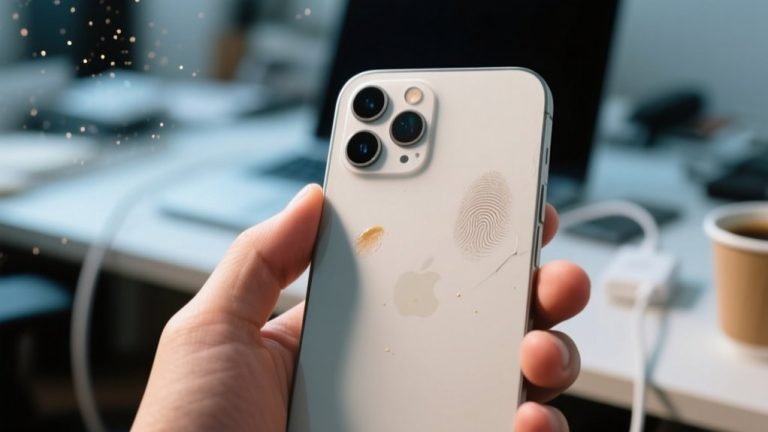
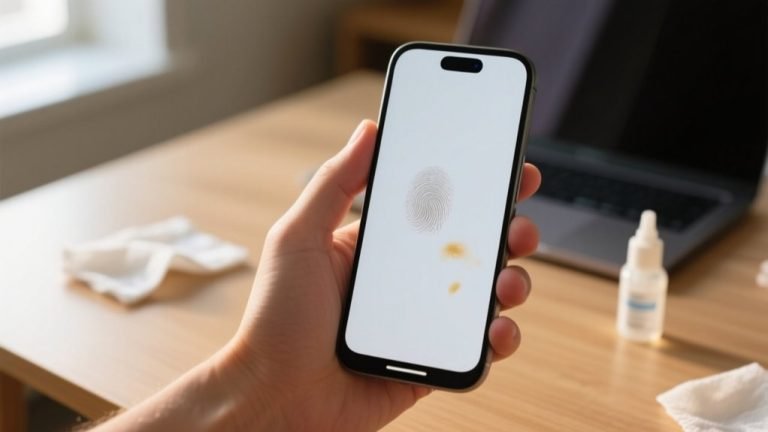
One of the simplest yet most overlooked tips is cleaning the front camera lens. Because the phone is handled constantly, the front lens often collects fingerprints, dust, and natural skin oils. Even a small smudge can reduce sharpness and create a hazy look. A quick wipe with a microfiber cloth before taking selfies instantly improves clarity and contrast without changing any settings.
Using the volume button as a shutter is another underrated trick. Pressing the on-screen shutter can cause slight movement, especially when holding the phone with one hand. The volume button lets you take photos more steadily and feels more natural. For hands-free selfies, an Apple Watch can also act as a remote shutter, making it easier to stay relaxed and composed.
Burst mode is perfect for capturing natural expressions. Instead of taking a single photo, hold down the shutter to capture multiple frames in quick succession. This increases the chances of getting a genuine smile or relaxed pose. It’s especially useful for selfies where timing matters, like laughter or candid moments.
Many people also forget that digital zoom on the front camera reduces image quality. Zooming digitally crops the image and lowers resolution, making selfies look soft or pixelated. Instead of zooming in, move the phone closer or adjust your framing. Keeping the front camera at its native zoom preserves sharpness and detail, resulting in cleaner, more professional-looking selfies.
Best iPhone Selfie Editing Settings
Editing selfies directly in the built-in Photos app is one of the easiest ways to improve image quality without overdoing it. Apple’s editing tools are designed to enhance photos subtly, which makes them ideal for keeping selfies realistic. The key is knowing which adjustments matter most and how to use them lightly so the final image still looks like you.
Exposure is the first setting to check. If a selfie looks too bright or too dark, small exposure adjustments can fix it instantly. Lowering exposure slightly often helps reduce shiny skin and blown highlights, while increasing it just a bit can brighten faces taken in dim light. Avoid extreme changes, as they can flatten details.
Brilliance is especially useful for selfies because it enhances midtones without affecting highlights and shadows too aggressively. Increasing brilliance adds clarity and depth to the face, making features stand out naturally. This adjustment is great for improving dull or flat-looking selfies without making them look heavily edited.
Warmth controls the overall color temperature of your selfie. Slightly increasing warmth can make skin tones appear healthier and more natural, especially in indoor or cloudy lighting. Be careful not to push it too far, as overly warm photos can look orange or unrealistic.
Sharpness should be used sparingly. A small increase helps define facial features and eye details, but too much sharpness emphasizes pores, fine lines, and noise. The goal is subtle clarity, not harsh texture.
Keeping edits natural is both an SEO and user experience win. Natural-looking selfies feel more authentic, build trust, and age better over time. Light, thoughtful adjustments enhance your photo without making it obvious that it was edited, which is exactly what most viewers respond to best.
Common iPhone Selfie Problems & Fixes
Selfies look blurry
Blurry selfies are usually caused by lens smudges, low light, or hand movement. Start by cleaning the front camera lens with a soft cloth. In low-light situations, hold the phone with both hands and stay still, especially if Night Mode activates. Using the volume button or a remote shutter also reduces shake and improves sharpness.
Skin looks too smooth
Over-smoothing often happens because of heavy HDR processing or portrait effects in certain lighting. Try turning off Smart HDR in evenly lit environments and avoid extreme portrait blur. Better lighting also helps—soft, natural light reduces the need for aggressive software smoothing and keeps skin texture more realistic.
Face looks stretched
Facial distortion usually comes from holding the phone too close or using ultra-wide lenses. Keep the phone at arm’s length and at eye level for more natural proportions. Avoid digital zoom on the front camera, as it can exaggerate facial features and reduce image quality.
Selfies look darker than preview
This happens when auto-exposure adjusts after the photo is taken. Before shooting, tap on your face and slightly increase exposure. Lock exposure by holding your finger on the screen until AE/AF Lock appears. This keeps brightness consistent between the preview and the final image.
Frequently Asked Questions (FAQs)
What Is The Best iPhone Camera Setting For Selfie Quality?
The best iPhone camera setting for selfie quality depends on lighting and environment, but a few settings consistently deliver strong results. You should enable Smart HDR for balanced skin tones, turn on Mirror Front Camera for natural-looking selfies, and manually adjust exposure before shooting. Using the grid helps frame your face correctly, while avoiding digital zoom keeps images sharp. These combined settings improve clarity, color accuracy, and composition without relying on heavy editing.
Should You Turn On Mirror Front Camera For Selfies?
You should turn on Mirror Front Camera if you want selfies to look the same as they appear on your screen. By default, iPhones flip selfies after capturing them, which can feel unfamiliar. Mirroring keeps facial features and poses consistent, making selfies look more natural. This setting is especially useful for content creators, social media posts, and selfies with text or hand gestures that need correct orientation.
Does Smart HDR Improve iPhone Selfies?
Smart HDR significantly improves iPhone selfies in most situations. It balances highlights and shadows, protects skin tones, and keeps backgrounds visible in bright or mixed lighting. You should use Smart HDR outdoors, near windows, or in high-contrast scenes. However, in evenly lit indoor environments, turning it off can reduce over-processing and keep skin texture more natural. Knowing when to use HDR gives you better creative control.
Why Do iPhone Selfies Look Different After Taking Them?
iPhone selfies may look different after capture because the camera applies automatic processing, exposure adjustment, and HDR blending. This can cause selfies to appear darker or smoother than the preview. To fix this, you should manually adjust exposure and lock AE/AF before shooting. Enabling Mirror Front Camera also helps match the preview. These steps reduce unwanted changes between what you see and the final photo.
How Can You Avoid Blurry Selfies On iPhone?
To avoid blurry selfies, you should clean the front camera lens regularly and ensure proper lighting. In low light, Night Mode may activate, requiring you to hold the phone steady. Use the volume button or a remote shutter to reduce hand movement. Avoid digital zoom, as it lowers resolution. Keeping the phone at arm’s length and staying still during capture greatly improves sharpness.
What Editing Settings Are Best For iPhone Selfies?
The best editing settings for iPhone selfies are subtle adjustments in the Photos app. You should slightly adjust exposure to fix brightness, increase brilliance for midtone clarity, add a touch of warmth for healthy skin tones, and apply minimal sharpness. Avoid extreme edits, as they make selfies look unnatural. Light, balanced edits improve image quality while keeping your selfie realistic and authentic.
Conclusion
Taking better selfies on an iPhone is mostly about understanding how small settings work together. When the right options are enabled and used correctly, the front camera becomes far more reliable in different lighting conditions. Simple adjustments like exposure control, framing, and lens positioning can noticeably improve clarity and skin tones.
Learning the iphone camera setting for selfie helps you avoid common issues such as blur, distortion, or over-processed skin. Instead of relying on filters or heavy edits, these settings allow you to capture photos that look natural and consistent straight from the camera. This saves time and keeps your selfies authentic.
With a little practice, these settings become second nature. Once you know when to adjust them based on the situation, taking high-quality selfies feels effortless. The result is images that reflect real moments, real expressions, and a more confident version of you.