Why Is My Camera Inverted and How Do I Fix It?
Your camera appears inverted because the front-facing camera’s mirroring feature flips the preview horizontally to simulate a mirror reflection. To fix this, disable the mirror or “save selfies as previewed” option in your camera settings. You can find this under Settings > Camera on iPhone or within the Camera app settings on Android.
If the issue persists, software glitches or hardware faults might be involved. You can also use third-party apps or reset your device to restore the correct orientation. Investigate further to understand detailed fixes and professional options.
Key Takeaways
- Inverted images often result from front camera mirroring, flipping previews to mimic a mirror reflection.
- Disable “Mirror Front Camera” on iPhone or “Save selfies as previewed” on Android to correct orientation.
- Keep your device software updated to fix camera bugs causing inversion issues.
- Persistent inversion may indicate hardware damage or sensor misalignment requiring professional repair.
- Use third-party camera apps with orientation controls if built-in settings don’t resolve the problem.
How to Fix an Inverted or Upside-Down Camera Image Quickly
If your camera image appears inverted or upside-down, you can quickly fix it by adjusting specific settings on your device.
For iPhone users, navigate to Settings > Camera and toggle off the “Mirror Front Camera” option under Composition to correct the front camera display.
On Android devices, open the Camera app, access Settings, and disable the “Save selfies as previewed” option to fix the inversion.
On Android, disable “Save selfies as previewed” in Camera settings to correct upside-down selfie images.
Restarting your device or updating to the latest software version often resolves temporary camera glitches.
If problems persist, try alternative camera apps to determine if the issue is app-specific.
As a last resort, resetting your device to factory settings may help.
Persistent inversion may indicate hardware faults, in which case contacting manufacturer support is advisable.
Why Does My Camera Show an Inverted Image?
Why does your camera sometimes display an inverted image? This typically happens because of the mirroring feature applied to the front-facing camera, a standard setting on many smartphones.
The inverted camera image results from this mirroring, which flips the preview horizontally to mimic a mirror reflection. While this can be useful for composing selfies, it causes confusion as your photo captures don’t reflect the actual orientation of subjects.
You can correct this by disabling the mirroring feature in your device’s camera settings, accessible through the options menu.
However, if the inverted image persists after adjusting settings, it might indicate a software glitch or hardware issue, requiring further troubleshooting or professional assistance to guarantee accurate photo captures.
How Camera Mirroring Affects Front-Facing Selfies
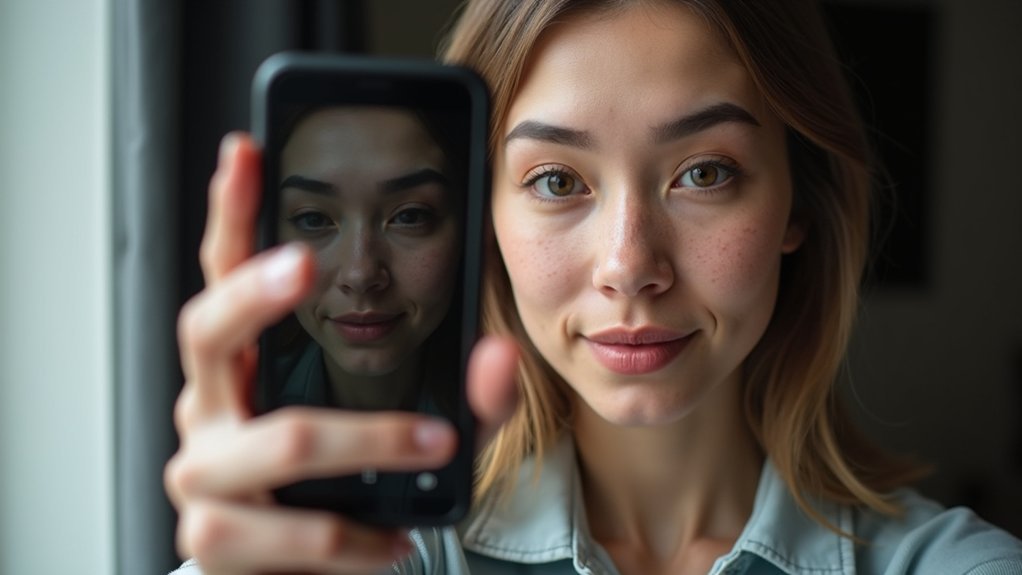
When you use your front-facing camera, it often shows a mirrored image that flips your appearance compared to how you actually look.
Because of this, text and logos in your selfies might appear backward, which can be a bit confusing or unexpected.
But don’t worry! You can usually change your camera settings to turn off the mirroring feature.
That way, your selfies will show your true image exactly as others see you. Pretty handy, right?
Mirrored Versus Actual Image
Although front-facing cameras often show mirrored images to match what you see in the display, this horizontal flip can distort your true appearance in selfies.
The mirrored image mimics what you view on the screen but doesn’t reflect how others see you. This discrepancy may cause confusion when reviewing photos on your Home Screen or sharing them.
To guarantee a better experience, you can adjust settings within your Camera app. For example, disabling the “Mirror Front Camera” option on iPhones or turning off “Save selfies as previewed” on Android devices corrects the image orientation.
These adjustments produce selfies that accurately represent your actual image rather than a reversed version, helping you capture photos that align with reality rather than the mirrored preview.
Adjusting Front Camera Settings
How does camera mirroring impact your front-facing selfies? Front cameras often display mirrored images, causing selfies to appear inverted compared to actual reflections.
On iPhones, disabling the “Mirror Front Camera” option captures images with accurate orientation, matching real-world appearance. Likewise, Android devices let you turn off “Save selfies as previewed,” ensuring photos save without the mirror effect.
These adjustments only affect new photos taken after changing the settings; existing images remain unchanged. By modifying these options, you gain precise control over how your selfies represent reality, eliminating confusion caused by mirrored previews.
Both iPhone and Android users can easily access these settings in their camera apps, improving selfie accuracy and delivering a more authentic visual representation.
Device Settings That Commonly Flip Camera Images
Since many smartphones default to mirroring front camera images, you might notice your selfies appear flipped or inverted. This happens because device settings often enable image mirroring by default.
On iPhones, the “Mirror Front Camera” option under Camera settings in the Composition section controls this behavior. Disabling it prevents new photos from being inverted.
Likewise, Android devices use the “Save selfies as previewed” toggle in their Camera app settings to control image orientation. Turning this off stops the camera from saving mirrored images.
Keep in mind, changes only affect photos taken after adjusting settings; existing inverted images remain unchanged.
If you continue facing inversion issues despite correcting these settings, investigate additional software configurations or consider hardware faults as potential causes.
How to Fix Inverted Camera Images on iPhone
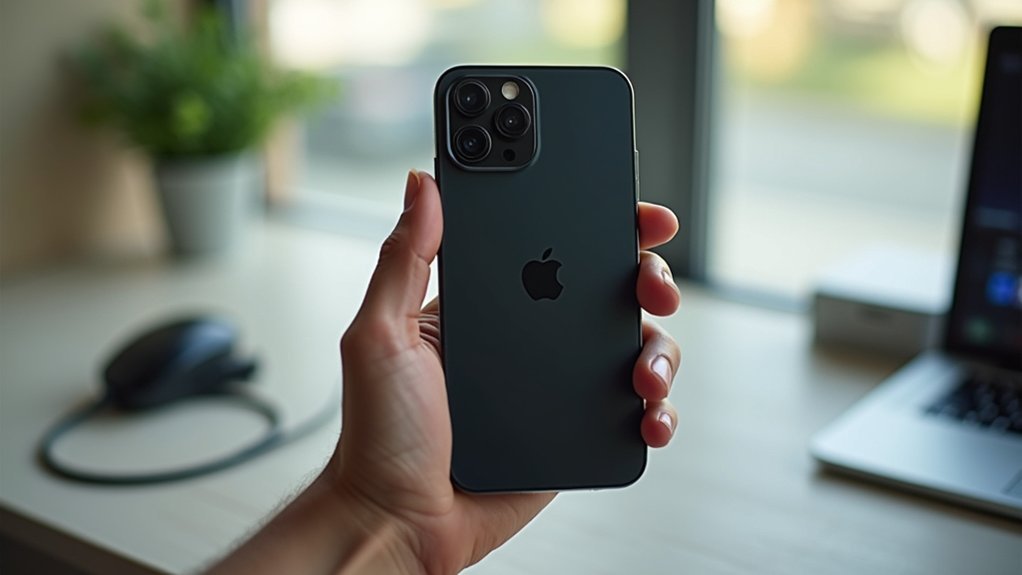
To fix inverted camera images on your iPhone, start by opening Settings and selecting the Camera option.
Next, look for the “Mirror Front Camera” toggle under Composition and turn it off. This will stop your selfies from being mirrored.
Keep in mind, this change only applies to new photos you take after adjusting the setting.
Disable Front Camera Mirror
Although the front camera on your iPhone often shows a mirrored preview, you can disable this effect to guarantee your selfies display accurately.
To do this, open the Settings app and scroll down to tap the Camera option.
Under the Composition section, find the “Mirror Front Camera” toggle and switch it off. This adjustment guarantees that new photos you take will reflect the true orientation, eliminating the inverted or flipped appearance common in front-facing selfies.
Keep in mind, the change only applies to photos captured after you disable the mirror setting. It won’t affect existing images.
Disabling the mirror effect improves your selfies’ accuracy by displaying the image exactly as seen in the camera preview, providing a more realistic and precise representation of your shot.
Update iOS Settings
When you notice inverted images from your iPhone camera, updating your iOS settings can resolve the issue efficiently.
Start by opening the Settings app and scrolling down to the Camera option.
Inside the Camera settings, locate the Composition section and toggle off the “Mirror Front Camera” feature. Disabling this setting prevents your selfies from appearing as mirrored images, ensuring they display the correct orientation.
Keep in mind, this change affects only new photos; existing images won’t be altered.
This adjustment is essential for users seeking accurate selfie representation, eliminating the common confusion caused by mirrored effects.
Regularly checking and updating these settings can maintain consistent image orientation and improve your overall camera experience on iOS devices.
How to Disable Front Camera Mirroring on Android
If your Android device saves front camera selfies as mirrored images, you can disable this feature by accessing the Camera app’s settings.
Open the Camera app and tap the settings icon, typically a cogwheel or down arrow.
Locate the option labeled “Save selfies as previewed” and toggle it off to save selfies without mirroring.
Note that this setting’s location may vary by phone model and Android version, so you might need to investigate the menu.
Changes apply only to new photos taken after adjustment, so test your camera afterward.
If the mirrored effect continues, try alternative camera apps or consult your device’s software updates to address potential underlying issues.
How Software Updates Can Resolve Camera Orientation Issues
You should regularly update your device’s software to make sure any bugs or issues with camera orientation get fixed.
These updates often come with patches that specifically address inversion glitches and boost compatibility with your camera features.
It’s pretty simple to do. Just head over to your device settings, look for system updates, and install the latest version available.
Keeping your software up to date can really help keep your camera working smoothly.
Importance Of Regular Updates
Although camera orientation issues can stem from hardware, software updates play a critical role in resolving these problems. By regularly updating your device’s operating system, whether iOS or Android, you guarantee that bug fixes and performance improvements targeting camera functionality are applied.
Manufacturers release these updates to address user-reported issues, including persistent image inversion glitches. Neglecting updates leaves your device vulnerable to unresolved software faults that impair proper camera behavior.
Furthermore, updates may introduce new camera features or adjustable settings, giving you more control over orientation correction. To maintain peak camera functionality and prevent inversion problems, you should prioritize keeping your device’s software current.
This proactive approach minimizes software-related errors and supports consistent, accurate image orientation during use.
Bug Fixes And Improvements
Maintaining up-to-date software directly addresses many camera orientation challenges by implementing bug fixes and system improvements.
Software updates often resolve glitches and compatibility issues within your device’s operating system that cause image inversion. By installing the latest updates, you guarantee your camera app and device firmware operate cohesively, correcting known bugs related to orientation errors.
These updates improve overall camera performance by refining image processing algorithms and stabilizing hardware-software interactions.
Moreover, camera app updates frequently include patches that specifically target usability and orientation problems, enhancing your photography experience. Keeping your device’s software current not only fixes existing inversion issues but also prevents future disruptions by strengthening security and reliability.
Regularly checking for updates is crucial for maintaining peak camera functionality and addressing orientation defects effectively.
Updating Steps For Devices
Since software updates often contain critical fixes for camera orientation errors, regularly checking and installing them can resolve many related issues on your device.
Updating your device’s software addresses bugs and glitches that may invert or distort your camera view, restoring proper function.
On an iPhone, go to Settings > General > Software Update to check for and install the latest iOS version.
Android users should navigate to Settings > System > System Update to find available updates.
Besides fixing camera problems, these updates improve overall device security and stability.
Manufacturers frequently release patches targeting known issues, so maintaining up-to-date software guarantees your camera operates correctly and your device remains reliable.
Don’t overlook these updates as a straightforward solution to inverted camera issues.
Troubleshooting Persistent Upside-Down Camera Problems
When your camera consistently captures images upside down, the issue often lies in software glitches, incorrect settings, or hardware malfunctions within the camera module. Start by accessing your camera settings to disable any auto-rotate or image flip features.
If the problem persists, clear the camera app’s cache and data to reset configurations. Installing third-party apps like GMD Smart Rotate can enforce the correct orientation. Also, check for system updates to apply manufacturer patches.
If none of these steps work, hardware faults may be involved, requiring professional service.
| Step | Action | Purpose |
|---|---|---|
| Adjust Settings | Disable image rotation | Correct software misconfigurations |
| Clear App Data | Reset camera app | Eliminate corrupted files |
| Install Third-Party | Use forced rotation apps | Override default behavior |
Could Your Camera Hardware Be Causing the Inversion?
How exactly can hardware problems cause your camera to capture inverted images? Damage from drops or impacts can physically misalign the lens or sensor assembly, resulting in distorted or flipped visuals.
Hardware issues like drops can misalign your camera lens or sensor, causing flipped or distorted images.
If internal components aren’t installed correctly, your device may consistently display inverted camera output.
Moreover, aging or defective hardware can disrupt proper communication between the sensor and software, causing orientation errors. These faults hinder the sensor’s ability to relay accurate image data, leading to inversion.
To prevent this, handle your device carefully and perform regular maintenance checks. Identifying hardware-related issues early can save you from persistent camera malfunctions and help maintain ideal imaging performance.
If hardware damage is suspected, professional inspection and repair are recommended to restore correct camera orientation.
Using Third-Party Camera Apps to Correct Inverted Images
If hardware issues aren’t the cause of your inverted camera images, software solutions can offer effective correction.
Third-party camera apps often include built-in features to adjust image orientation, allowing you to correct inversion directly. Popular apps like Camera FV-5 and Open Camera let you disable mirroring or flip images through customizable settings.
You can investigate app stores to find alternatives with improved control over image orientation compared to stock apps. Many of these apps provide real-time previews, ensuring your images capture correctly before you shoot.
Checking user reviews and feedback helps you select reliable options tailored to fix inversion problems.
How to Reset Camera Settings to Default on Your Device
Although inverted images can stem from various causes, resetting your camera settings to default often resolves software-related issues.
On an iPhone, navigate to Settings > Camera and locate the reset option, which may differ depending on your iOS version.
Access Settings > Camera on your iPhone to find the reset option, varying with your iOS version.
For Android devices, open the Camera app, tap the cogwheel to access settings, then select “Reset settings” or “Restore default settings,” depending on your model. This action reverts all custom configurations to the manufacturer’s original parameters, eliminating misconfigurations that might cause image inversion.
Remember, resetting can’t be undone, so back up important preferences beforehand. After completing the reset, test your camera to verify that the inversion issue is resolved.
This method addresses software glitches efficiently without requiring additional tools or apps.
How to Back Up and Restore Your Phone to Fix Camera Issues
Before performing a factory reset to fix camera issues, you should back up your data to prevent loss of important information.
On an iPhone, go to Settings > [your name] > iCloud > iCloud Backup, then tap “Back Up Now” to save your data.
For Android, navigate to Settings > System > Backup and enable “Back up to Google Drive” for automatic backups.
To restore your iPhone, access Settings > General > Transfer or Reset iPhone > Erase All Content and Settings, which erases all data.
On Android, go to Settings > System > Reset options > Erase all data (factory reset).
After resetting, set up your phone as new or restore from your backup. This process can resolve persistent camera inversion issues caused by software errors.
When to Contact Professional Support for Camera Repair
When persistent camera inversion issues continue despite adjusting settings, updating software, and performing resets, you should contact professional support for a detailed evaluation. This step is essential as it may indicate hardware malfunctions beyond user troubleshooting.
Also, consider professional help if your camera shows physical damage or abnormal behavior. Before contacting support, check your warranty status and available service options to avoid unnecessary costs. Professional technicians can accurately diagnose and repair underlying hardware faults that aren’t visible during standard checks.
| Condition | Recommended Action | Notes |
|---|---|---|
| Software settings adjusted | Monitor camera function | Issue likely software-related |
| Persistent inversion | Contact professional support | Possible hardware malfunction |
| Physical damage visible | Seek immediate repair service | Avoid further device damage |
| Warranty valid | Use authorized repair centers | Guarantees genuine parts and service |
| No improvement after reset | Professional diagnosis needed | Extensive hardware check |
Frequently Asked Questions
Can External Lenses Cause My Camera Image to Invert?
Yes, external lenses can cause your camera image to invert if they introduce optical distortions or misalignments.
When you attach lenses that alter the field of view or magnification without proper calibration, image orientation may be affected.
To fix this, make certain the lens is compatible with your camera model.
Clean both the lens and camera regularly, and check your camera’s auto-rotation settings to prevent upside-down images.
Does Lighting Affect Camera Image Orientation?
Lighting doesn’t flip your camera’s image like a magician’s sleight of hand.
Instead, poor lighting acts like a fog, obscuring details and making it harder for your camera’s autofocus and orientation sensors to work properly.
Bright light sharpens the scene, helping your device confirm the correct alignment.
How Do Mirrorless Cameras Handle Image Inversion?
Mirrorless cameras handle image inversion by using electronic viewfinders or LCD screens that display the image in real time without flipping it like traditional optical viewfinders.
You can usually toggle a “mirror” or “flip” setting in the menu to adjust orientation, especially for selfies or portraits.
This flexibility lets you instantly see and correct inversion issues, ensuring your images are captured exactly as you intend during shooting.
Are Inverted Images Common in Video Recording Too?
Yes, inverted images are common in video recording, especially with front-facing cameras.
You’ll often encounter mirrored or flipped views due to default software settings designed to replicate a selfie perspective.
To fix this, you should check your camera or app settings for options like “mirror” or “flip” and disable them.
This guarantees your recorded video matches the actual scene orientation, providing accurate visuals during recording or live streaming.
Can Camera Inversion Affect Image Resolution or Quality?
No, camera inversion doesn’t affect image resolution or quality because the pixel data stays intact.
When your image appears flipped or upside down, it’s merely the orientation that changes, not the sharpness or detail.
You might find composition tricky, but the clarity remains.
If you want to fix it, adjust your camera’s orientation settings or reset software configurations.
Persistent issues could require technical support, but rest assured, inversion won’t degrade image quality.
Conclusion
If your camera suddenly flips upside down, like Sarah’s iPhone did after an update, don’t panic. Start by checking device orientation and camera settings. Then try resetting your camera app or using third-party software.
If issues persist, backing up and restoring your phone can help. When all else fails, professional support might be necessary. Understanding these steps guarantees you quickly restore normal camera function without losing precious moments or data.