How to Save TikTok Videos to Camera Roll in 5 Easy Steps
To save a TikTok video to your camera roll in five easy steps, open TikTok and find the video you want. Tap the Share icon, then tap “Save Video.” Make sure TikTok has permission to access your photos.
The video saves directly to your camera roll or gallery. If you want to save all your own videos automatically, toggle on “Save to device” in your post settings.
Keep exploring to learn how to fix saving issues and manage your videos efficiently.
Key Takeaways
- Open TikTok and find the video you want to save on the Home tab.
- Tap the Share icon (curved arrow) in the upper-right corner of the video.
- Select “Save Video” from the sharing options to start downloading.
- Allow TikTok permission to access your photos or media if prompted.
- Find the saved video in your device’s Camera Roll or Gallery app.
Save Any TikTok Video to Your Camera Roll

When you want to keep a TikTok video for later, saving it to your Camera Roll is quick and simple.
First, open the TikTok app and find the video you want on the Home tab. Tap the Share icon, a curved arrow, located on the right side near the upper-right corner of the video.
Open TikTok, locate your desired video on the Home tab, and tap the Share icon near the top right.
If it’s your first time saving a video, TikTok may ask for permission to access your photos and media. Make sure to allow it to proceed.
Then, select “Save Video” from the sharing options at the bottom.
The video will download directly to your device and appear in your Camera Roll or Gallery.
That’s all it takes to save any TikTok video for easy viewing whenever you want.
Turn On Automatic Saving for Your TikTok Videos
Although manually saving TikTok videos works fine, you can save time by turning on automatic saving. To do this, open TikTok and tap the “+” button to start creating your post.
After recording or uploading your video, hit “Next” to reach the editing screen. Scroll down to find the “More options” section at the bottom. Here, toggle on the “Save to device” switch.
This setting guarantees every video you post is automatically saved to your device’s camera roll without any extra steps.
Activating this feature streamlines your workflow, so you don’t have to worry about forgetting to save your content later.
It’s a simple change that saves you hassle and keeps all your TikTok creations handy right after posting.
Fix It When TikTok Videos Won’t Save
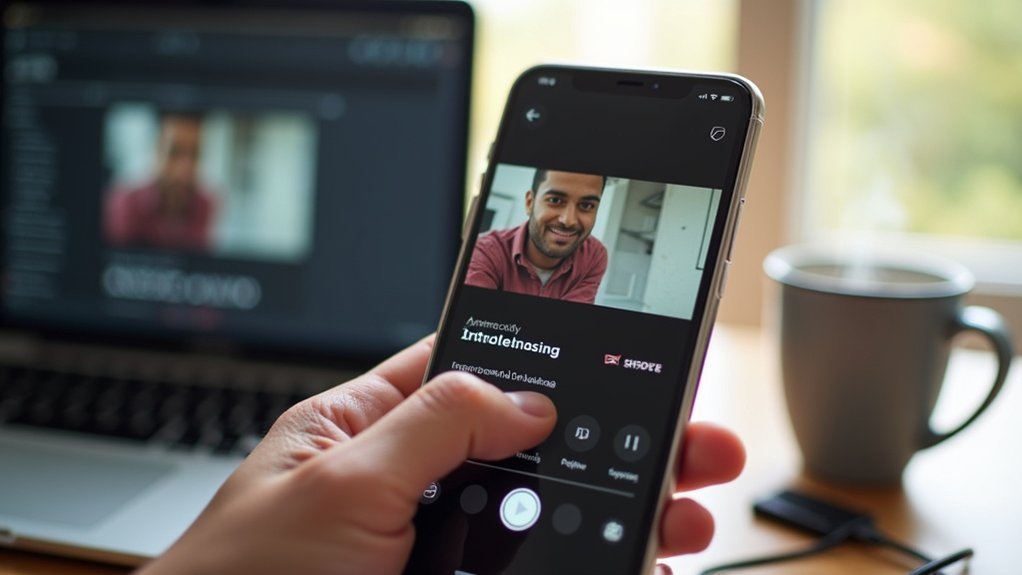
If TikTok videos aren’t saving to your camera roll, chances are your app lacks the necessary permissions or your device is running low on storage.
Here’s how to fix it fast:
Make sure TikTok has permission to access your device’s storage in your settings.
Check your device’s storage space and free up room if it’s nearly full.
Restart the TikTok app or your device to clear any temporary glitches.
Update TikTok to the latest version to avoid bugs interfering with downloads.
If problems continue, uninstall and reinstall TikTok to fix underlying software issues.
Following these steps should get your videos saving smoothly again, so you never miss capturing your favorite TikToks.
Download TikTok Videos Using a Third-Party App
Wondering how to save TikTok videos without relying on the app’s built-in download feature? You can use a third-party app like Video Downloader by InShot. First, download it from the Google Play Store.
Then, open TikTok, find the video, tap Share, and select “Copy Link.” Open Video Downloader, paste the link, and tap the Download icon. The video will save directly to your Gallery. Just make sure the app has storage permissions.
| Step | Action |
|---|---|
| 1. Download app | Install Video Downloader by InShot |
| 2. Copy link | Use TikTok’s Share > Copy Link |
| 3. Paste link | Open downloader app, paste URL |
| 4. Download video | Tap Download, save to Gallery |
This method is quick and reliable for saving videos outside TikTok.
Find and Manage Your Saved TikTok Videos on Android
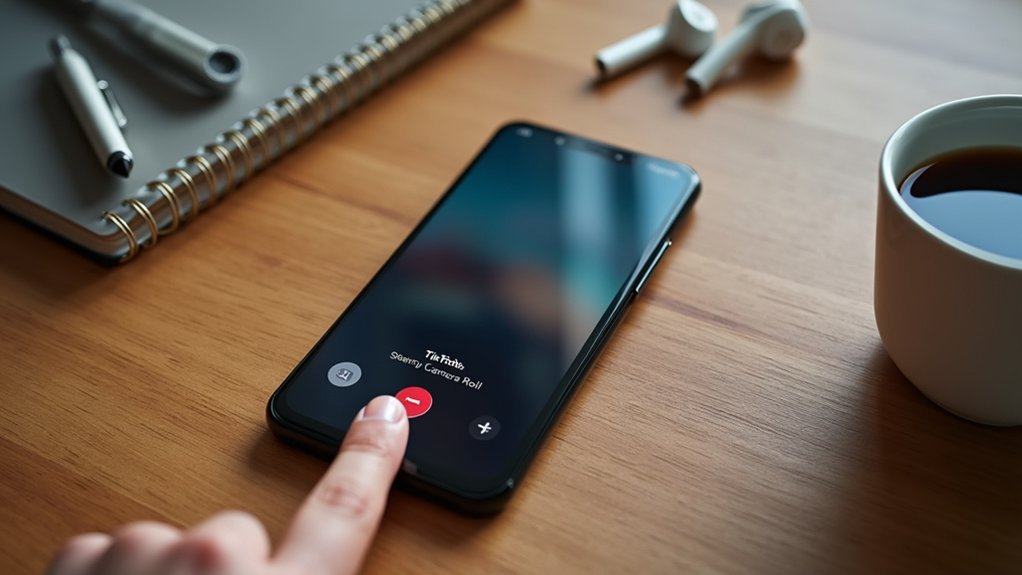
After downloading TikTok videos using a third-party app or the platform’s own features, you’ll want to easily locate and manage them on your Android device.
Here’s how to find and organize your saved TikTok videos:
Open TikTok and tap the “Me” icon to access your profile. Then go to the “Favorites” section (heart icon) to see videos you saved within TikTok.
Check your device’s Gallery app, especially the “TikTok” folder, for videos saved automatically or manually. For third-party downloads, look in the downloader app’s folder or your Gallery.
Manage your videos by creating albums or deleting unwanted clips directly from the Gallery or TikTok app. This way, you keep your TikTok collection tidy and easy to access anytime.
Frequently Asked Questions
Can I Save Tiktok Videos Without the Watermark?
Yes, you can save TikTok videos without the watermark.
You’ll want to use third-party apps like Video Downloader by InShot, where you paste the video link and download it clean.
Alternatively, screen recording your phone while playing the video works well to avoid watermarks.
Just be mindful of copyright rules and privacy concerns when using these methods, especially with third-party services.
Always respect creators’ rights while saving videos.
Are There Any Legal Issues With Downloading Tiktok Videos?
Yes, there are legal issues you should consider when downloading TikTok videos.
If you save or share videos without the creator’s permission, you might violate copyright laws and TikTok’s terms of service.
Some videos have restrictions or watermarks emphasizing this.
Always respect creators’ rights by checking their privacy settings and asking for permission, especially if you plan to use the content beyond personal viewing.
Staying legal keeps you safe and respectful.
How Much Storage Space Do Saved Tiktok Videos Typically Use?
Saved TikTok videos usually take up between 5 to 30 MB each, depending on their length and quality.
Short clips under 15 seconds might only use 5 to 10 MB, while longer ones around a minute can reach up to 30 MB.
If you save lots of videos, your storage can fill up quickly, so you’ll want to delete ones you don’t watch often to keep your device running smoothly.
Can I Save Tiktok Videos in HD Quality?
Yes, you can save TikTok videos in HD quality but it depends. If the original video was uploaded in high resolution and saving is enabled, your download will be crisp.
When it’s your own video, turning on “Save to device” guarantees top quality.
Using third-party apps can help, but their settings and your internet speed might affect clarity.
Also, make sure you’ve got enough storage; HD videos take up more space than you might expect.
Is It Possible to Save Tiktok Videos on iOS Without the App?
Yes, you can save TikTok videos on iOS without the app by using your device’s built-in screen recording feature.
Just enable it in your Control Center settings, start recording, then play the TikTok video you want.
When you stop recording, the video saves directly to your Photos app.
Keep in mind, the quality mightn’t be as sharp as downloading through the app, and you might capture notifications or other screen elements.
Conclusion
So, there you have it. Saving TikTok videos to your camera roll is practically a high-tech quest made easy.
If TikTok’s being stubborn and refuses to save your favorite dance fails, just call in a third-party app like a digital superhero.
Remember, managing your saved videos is your secret power. Now go ahead, collect those viral gems because who needs streaming when you can hoard TikTok treasures offline like a true digital archaeologist?