How to Reset Ring Camera in 5 Easy Steps
To reset your Ring camera, first locate the setup button on the device, often on top or inside the battery compartment. Make sure your camera is powered or fully charged.
Press and hold the setup button for about 15 seconds until the front light flashes, signaling the reset has started. After the reset, open the Ring app to reconnect your camera to Wi-Fi and your account.
Keep following to learn what to do if the reset doesn’t work smoothly.
Key Takeaways
- Ensure the Ring camera is powered on with a fully charged battery or connected to a power source.
- Locate and press the setup button on top or inside the battery compartment for at least 15 seconds.
- Wait for the camera’s light to flash, indicating the reset process has started.
- If unresponsive, power cycle the device by removing the battery or unplugging for 10 seconds and retry.
- Open the Ring app to reconnect the camera by following the setup prompts after the reset completes.
Find the Reset Button on Your Ring Camera
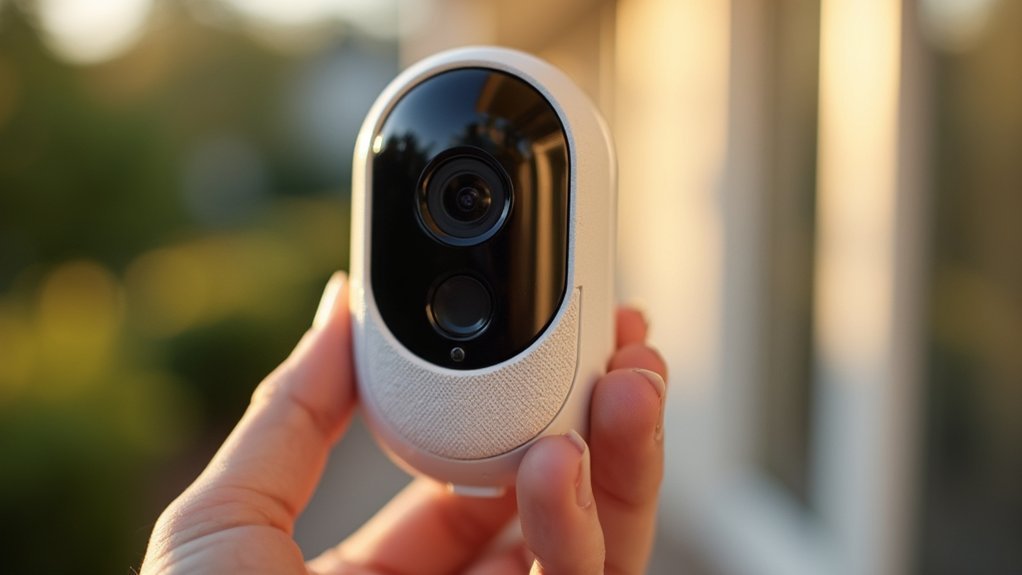
To reset your Ring camera, you’ll first need to locate the setup button.
For outdoor models, this button hides inside the battery compartment, so you’ll have to remove the battery to access it.
For all other Ring cameras, you’ll find the setup button on top of the device.
Before pressing it, make sure your Ring camera is connected to a power source or sufficiently charged.
Hold the setup button down for about 15 seconds to initiate the reset.
During this time, the camera’s light will flash, confirming the reset process has started.
Once reset, you’ll need to reconfigure your Ring camera through the app to reconnect it to your Wi-Fi network and complete the setup.
Get Your Ring Camera Ready for a Reset
Before you reset your Ring camera, make certain it’s fully powered either by charging the battery or connecting it to a power source. A fully charged internal battery guarantees the device won’t shut down mid-reset.
To get your Ring device ready for a reset, follow these steps:
- Confirm the internal battery is fully charged or the device is plugged in.
- Turn the Ring device on to allow a proper power cycle.
- Locate the reset button, usually near the setup button.
- Avoid interrupting the power during the reset to prevent errors.
- Have your Ring app ready to reconnect after the reset.
Preparing your Ring camera this way guarantees a smooth reset process without power interruptions or device failures.
How to Reset Your Ring Camera
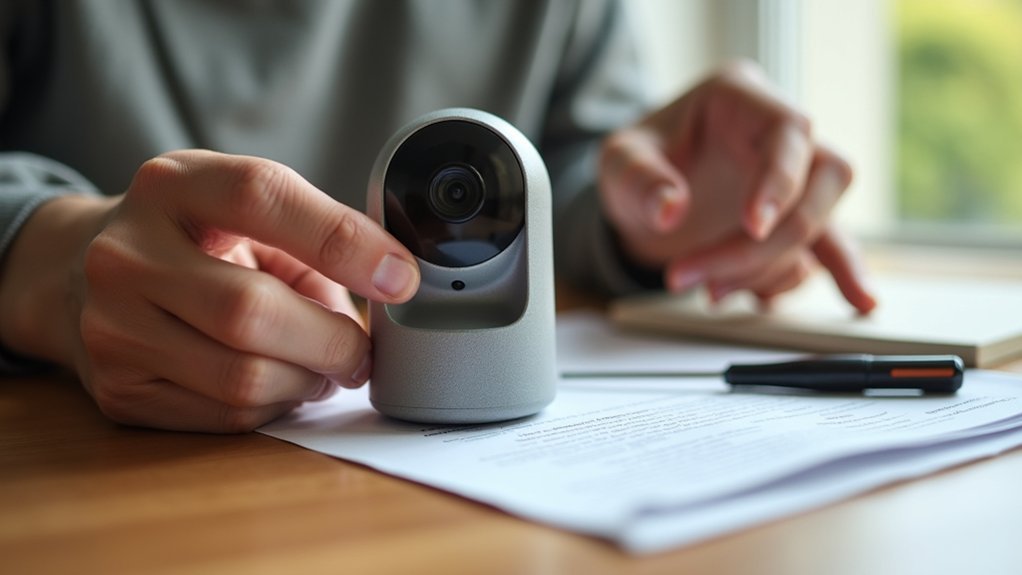
Resetting your Ring camera takes just a few simple steps. First, make certain your camera has power. Check the battery or power connection.
To reset my Ring, locate the setup button, usually on top or inside the battery compartment. Press and hold this button for at least 15 seconds until the front light flashes. This signals the start of the factory reset.
If the camera doesn’t respond, power cycle it by removing the battery or unplugging it for 10 seconds. Then try again.
Once reset, open the Ring app to reconnect your camera to Wi-Fi and complete setup.
Following these steps guarantees your device resets properly and is ready to use again without issues.
What to Do If Your Ring Camera Reset Fails
If your Ring camera won’t reset, start by confirming it has steady power and that you’re holding the setup button for at least 20 seconds until the indicator light responds.
If it still fails, follow these steps:
Power cycle the camera by removing its battery or switching off the circuit breaker for 30 seconds.
Double-check you’re pressing the reset button correctly and holding it long enough.
Inspect the reset button and device for any damage or corrosion that might indicate a hardware issue.
Verify the power source is stable and supplying adequate power.
If none of these work, contact Ring support for further assistance and possible diagnostics.
These steps help you troubleshoot reset problems effectively and determine if a hardware issue needs professional attention.
Set Up Your Ring Camera in the App After Reset
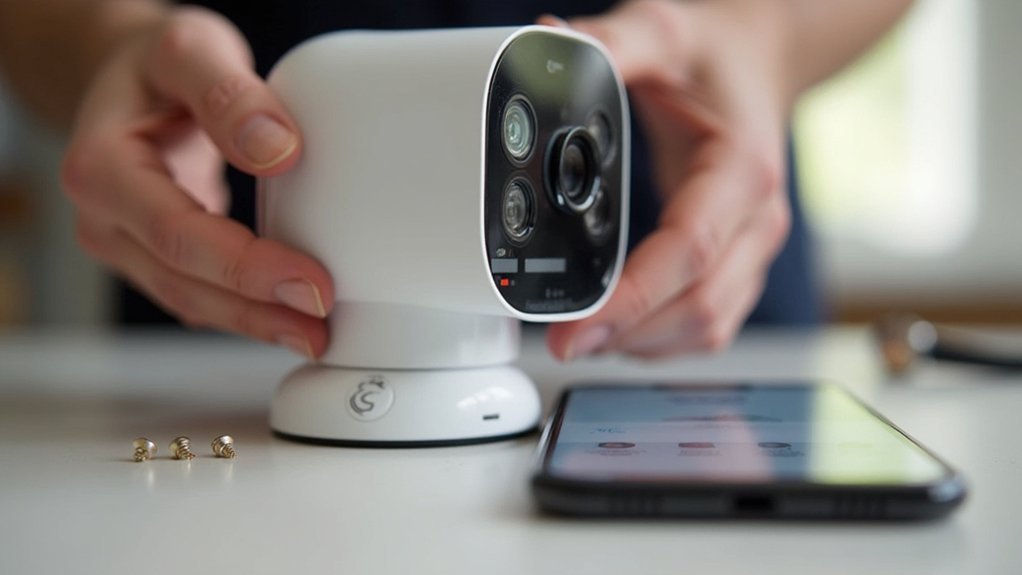
Once your Ring camera successfully resets, open the Ring app and tap “Set Up a Device” to start configuring your camera. Make sure your smartphone is connected to the Wi-Fi network you want your Ring camera to use.
Follow the prompts to select your device type and model accurately. When asked, press the setup button on your Ring camera to enter setup mode.
Complete the setup by connecting the camera to your Wi-Fi and linking it to your Ring account.
| Step | Action |
|---|---|
| 1 | Open Ring app, tap “Set Up a Device” |
| 2 | Connect smartphone to desired Wi-Fi |
| 3 | Follow prompts, press camera setup button |
Frequently Asked Questions
Can I Reset My Ring Camera Remotely Through the App?
You can’t reset your Ring camera remotely through the app.
To reset it, you need to press and hold the setup button on the device itself for about 15 seconds until the light flashes.
Make sure the camera stays powered during this process.
After the reset, you’ll have to set it up again via the Ring app, reconnecting it to your Wi-Fi.
This physical reset is necessary to restore factory settings.
Will Resetting Delete All My Recorded Videos?
No, resetting your Ring camera won’t delete all your recorded videos.
Videos stored in the cloud stay safe as they’re linked to your Ring Protect subscription, not the device.
However, any local videos on the device might be lost.
To avoid losing important footage, download your videos from the Ring app before resetting.
This way, you keep your recordings intact while renewing your camera settings.
How Often Should I Reset My Ring Camera?
You shouldn’t reset your Ring camera often; frequent resets can wear out the device and shorten its life.
Instead, only reset when you face serious issues like unresponsiveness or persistent connectivity problems that other troubleshooting steps can’t fix.
Keep your firmware updated via the Ring app, as updates usually solve bugs without a reset.
Does Resetting Affect My Ring Protect Subscription?
No, resetting your Ring camera doesn’t affect your Ring Protect subscription.
Your subscription is linked to your Ring account, not the device itself.
After resetting, you’ll need to reconnect your camera to Wi-Fi and re-add it to your account.
All your recorded videos and events stay intact.
Just make sure you set up the device properly again so you keep getting all the subscription benefits without interruption.
Can Resetting Fix Connectivity Issues With My Wi-Fi?
Think of resetting your Ring camera as hitting the refresh button for your device’s connection.
Yes, it can fix Wi-Fi issues by wiping old network settings and letting you start fresh.
After reset, you’ll re-enter your Wi-Fi info, helping the camera link to the right network.
Just make sure your signal’s strong afterward.
If the problem persists, a reset often clears glitches causing connectivity hiccups.
Conclusion
Resetting your Ring camera is straightforward if you follow these steps carefully. While some believe a reset always fixes connectivity or performance issues, it’s not a guaranteed solution. Hardware problems might still persist.
If your reset doesn’t work, don’t hesitate to troubleshoot further or contact support. Once reset, setting up your camera again in the app guarantees it functions properly. This approach helps you solve most common issues quickly and efficiently.