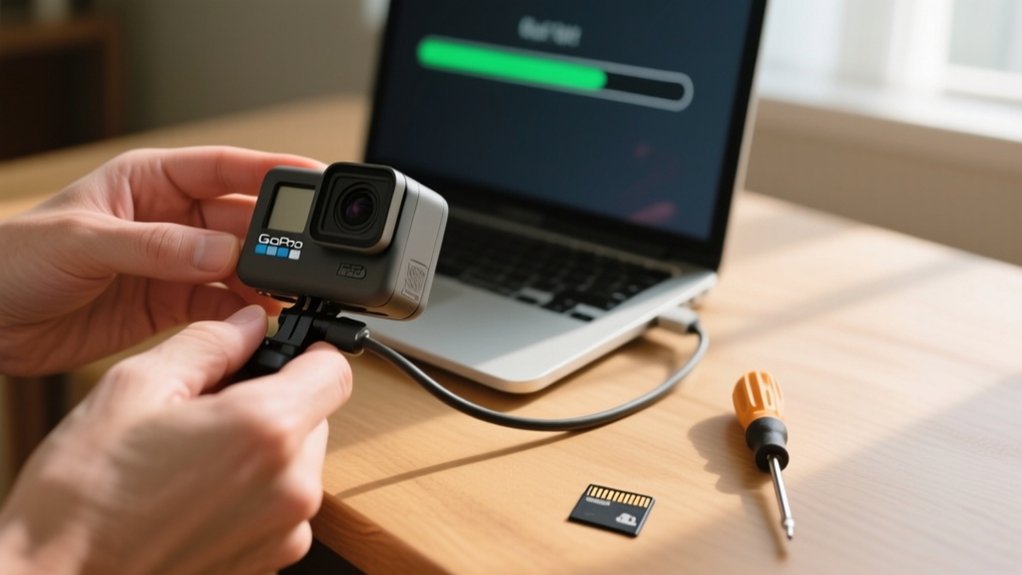
How to Update GoPro Camera in 7 Simple Steps
To update your GoPro Hero 7 Black, first check your model and guarantee the battery is at least 50%. Format a micro SD card to FAT32, then download the latest firmware from GoPro’s official site.
Copy the firmware files to the card’s root directory, insert it into your camera, and power it on to start the update. Wait for the confirmation checkmark before using your camera.
For a step-by-step guide to make this process seamless, keep exploring these tips.
Key Takeaways
- Ensure your GoPro Hero 7 Black battery is at least 50% charged or connected to power before starting the update.
- Format your micro SD card to FAT32, back up files, and prepare a stable internet connection for firmware download.
- Download the latest firmware from GoPro.com/update using your camera’s serial number and copy files to the card’s root directory.
- Insert the micro SD card into the camera, power it on, and wait 1-3 minutes for the update to complete with a checkmark confirmation.
- Verify the firmware version in settings and test camera functions to ensure the update installed successfully and runs smoothly.
Check Your GoPro Model and Battery Level
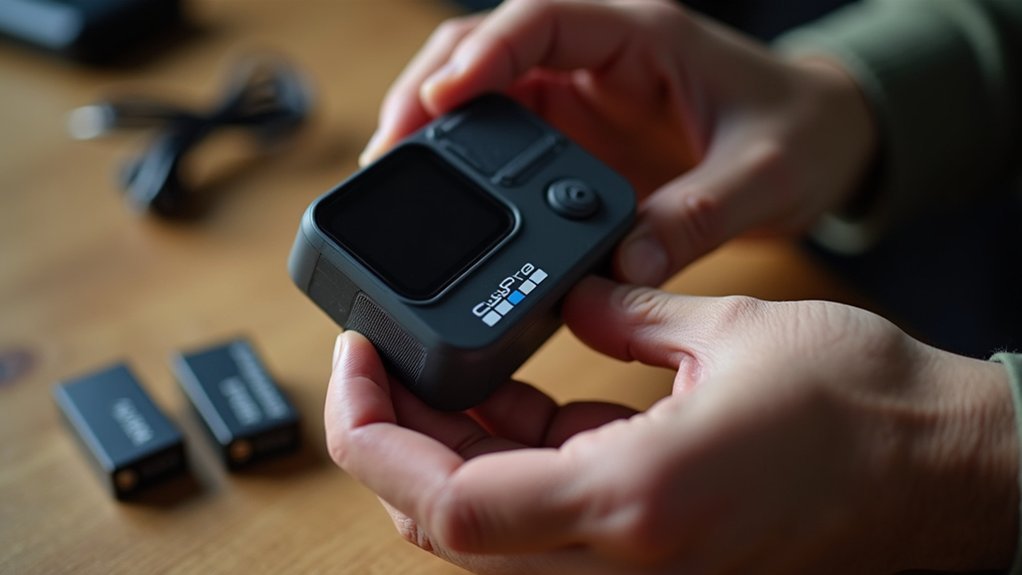
Before you begin updating your GoPro camera, make sure you’re using the GoPro Hero 7 Black model, as this guarantees the firmware will be compatible.
Next, check the battery level. Your GoPro should have at least 50% charge before starting the firmware update. This helps prevent interruptions that can cause update failures or camera issues.
If your battery is low, fully charge the device or connect it to a power source during the process to maintain power stability.
Confirming your model and ensuring sufficient battery level are essential first steps to a smooth firmware update.
Always verify your GoPro model and battery level before updating to ensure a seamless firmware upgrade experience.
Taking these precautions helps protect your GoPro Hero 7 Black from potential firmware corruption or power loss during the update, ensuring your camera stays ready for use.
Format Your Micro SD Card and Ready Your Computer
Start by formatting your micro SD card to FAT32 using a card reader connected to your computer. This step guarantees compatibility during the update process.
If you’re running Windows, use the built-in Disk Management tool or a trusted formatting app on your computer. Before formatting, back up any important files since this will erase all data.
Next, prepare your computer for the update by following these steps:
Connect to a stable internet connection to download firmware files.
Verify your system meets GoPro’s firmware update requirements.
Insert the formatted micro SD card into the card reader.
Create a dedicated folder on the micro SD card for firmware files to keep them organized.
With these preparations done, you’re ready to proceed with downloading the update.
Download GoPro Hero 7 Black Firmware From Official Website
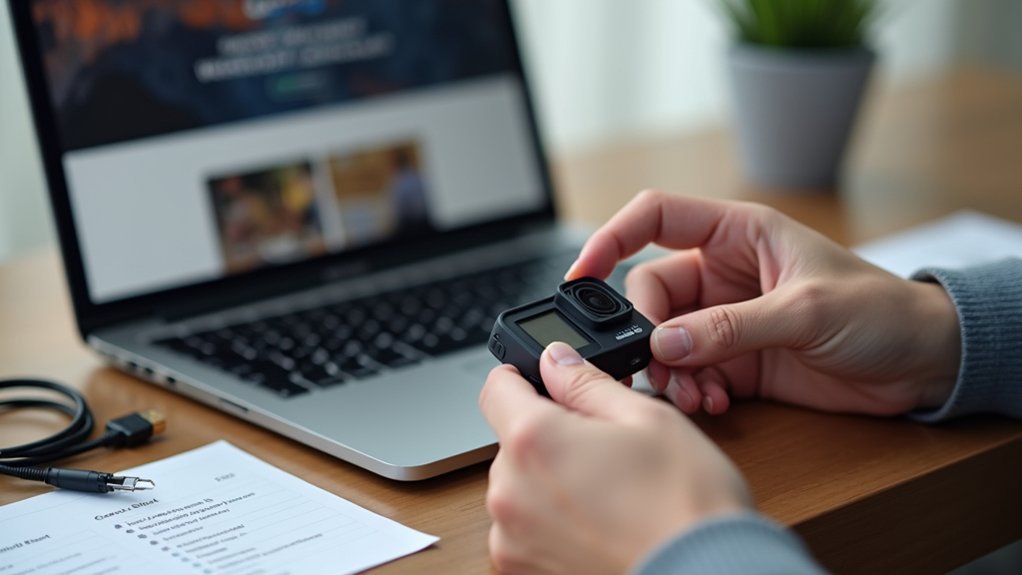
Head over to GoPro.com/update and click on the Hero 7 Black icon to get started.
You’ll need to enter your camera’s serial number along with your email address to access the firmware files.
Once you agree to the terms, you can download the update straight to your computer.
From there, you’re all set for the next step!
Access Official Update Page
To update your GoPro Hero 7 Black, visit GoPro.com/update and select the Hero 7 Black icon to begin. You’ll need some key information at hand, including your camera’s serial number and your email address. This assures you receive the correct firmware and update notifications.
Once on the official update page, follow these steps:
Enter your email address and serial number accurately. Review and agree to the terms of use. Download the latest firmware files directly from GoPro. Extract the update files onto your micro SD card for installation.
Using the official update page guarantees you get authentic firmware, minimizing risks of errors or device issues.
Keep your information ready to streamline the process and update your GoPro Hero 7 Black smoothly.
Enter Camera Details
One essential step in updating your GoPro Hero 7 Black is entering your camera details accurately on the official GoPro update page.
Head to GoPro.com/update and input your camera’s serial number exactly as it appears.
Next, provide a valid email address to receive update notifications and support information.
Before moving forward, make sure to read and agree to the terms of use, which is mandatory to access the firmware files.
Double-check your entries to avoid errors that could delay the update process.
Remember to maintain a stable internet connection throughout to prevent interruptions.
Once submitted, you’ll be granted access to the correct firmware files tailored specifically for your Hero 7 Black, setting the stage for a smooth update.
Download Firmware Files
After entering your camera details on the GoPro update page, you can proceed to download the firmware files needed for your Hero 7 Black.
Start by visiting GoPro.com/update and selecting the Hero 7 Black icon to access the correct files.
Then, provide your camera’s serial number and email address to continue. Before downloading, make certain you agree to the terms of use.
Once the files are on your computer, extract them directly to your micro SD card.
To summarize:
- Go to GoPro.com/update and pick Hero 7 Black
- Enter your serial number and email
- Accept the terms of use
- Extract the update files to your micro SD card before inserting it into the camera
This guarantees you have the right firmware ready for a smooth update process.
Enter Camera Details and Get the Firmware Files
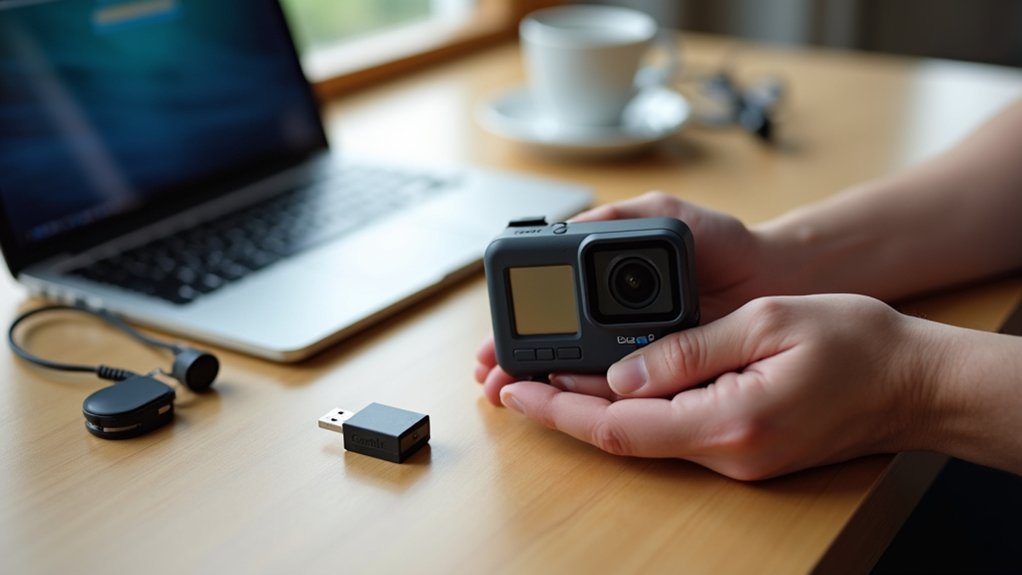
When you visit GoPro.com/update, you’ll find the firmware update section designed for your camera. Start by selecting the GoPro Hero 7 Black icon to guarantee you get the correct firmware for your model.
Next, enter your camera’s serial number and your email address to continue. This step verifies your device and allows GoPro to send you update notifications if needed.
Enter your camera’s serial number and email to verify your device and receive update alerts.
After filling in the details, read and accept the terms of use to enable the download. Once you agree, the download option for the firmware files will become available.
Make certain to download these files carefully, as they’re essential for updating your camera manually.
This process sets you up perfectly for the next step: transferring the files to your micro SD card.
Copy Firmware Files to Your Micro SD Card
With the firmware files downloaded, the next step is to transfer them to your micro SD card.
First, make sure your card is properly formatted and has enough space for the update files.
Then, follow these steps:
Extract the downloaded firmware files directly to the root directory of your micro SD card, avoiding any folders.
Double-check that all files are correctly copied to prevent update errors.
Safely eject the micro SD card from your computer to avoid corrupting the data.
Keep the card handy for the next step where you’ll insert it back into your GoPro.
Insert the Card and Start the GoPro Firmware Update
Insert the micro SD card with the firmware files into your GoPro camera securely.
Then, power on the camera. It will automatically detect the update and begin the installation process.
Just wait for the confirmation checkmark before using your camera again.
Insert Micro SD Card
To kick off the firmware update, place the micro SD card containing the extracted update files firmly into your GoPro Hero 7 Black’s card slot.
Make sure the card is fully inserted to prevent read errors that could interrupt the update.
Keep these points in mind:
- Confirm the update files are properly extracted and saved on the micro SD card.
- Insert the card gently but securely into the camera’s slot.
- Avoid removing or reinserting the card during the update process.
- If the camera doesn’t recognize the card, re-seat it carefully or try a different card.
Once the card is inserted correctly, you’ll be ready to power on the camera and initiate the update seamlessly.
Power On To Update
Once you’ve placed the micro SD card with the update files into your GoPro Hero 7 Black, powering on the camera will automatically start the firmware update.
You don’t need to press any buttons; the camera detects the update files and begins the process on its own.
During the update, the camera will restart a few times, and you’ll hear beeping sounds signaling progress.
Be patient and avoid turning off the camera. The update usually takes between 1 to 3 minutes.
When the process finishes, a confirmation checkmark will appear on the display, indicating a successful installation.
At this point, you can safely remove the card or continue using your GoPro with the latest firmware installed.
Verify GoPro Firmware Update Completed Successfully
How can you be certain your GoPro firmware update finished correctly? After updating your GoPro Hero 7 Black, look for a checkmark icon on the screen. That’s your confirmation of success.
Look for the checkmark icon on your GoPro Hero 7 Black screen to confirm the firmware update was successful.
If you don’t see it or the camera acts up, the update may have failed, so you might need to repeat the manual update.
To verify, go to the settings menu and check the “About” section for the current firmware version number. Confirm the version matches the latest update you installed.
Test your camera’s performance and new features to make sure everything works smoothly.
If you face issues, visit the GoPro support website for troubleshooting and solutions. Following these steps helps you confidently verify that your firmware update completed successfully.
Frequently Asked Questions
Can I Update My Gopro Without Wi-Fi?
Yes, you can update your GoPro without Wi-Fi by manually downloading the firmware on your computer.
Just visit the GoPro website, download and extract the update files to a micro SD card.
Insert the card into your camera, power it on, and the update will start automatically.
It usually takes a few minutes, and you’ll see a confirmation checkmark once it’s done.
This method keeps your GoPro up-to-date without needing a wireless connection.
Will Updating Erase My Photos and Videos?
Fear not, updating your GoPro won’t erase your photos and videos like a VHS tape rewinding to zero!
You can confidently update the firmware without losing any media stored on your micro SD card. The update improves system software but keeps your captures safe.
Still, it’s smart to back up your files before updating, just in case. So go ahead; your memories will stay exactly where you left them.
How Long Does the Firmware Update Usually Take?
The firmware update usually takes about 1 to 3 minutes to complete.
During this time, your GoPro may beep and restart as it installs the update.
Make sure your camera has enough battery life before starting to avoid interruptions.
Once you see a checkmark on the screen, the update’s done.
Keep in mind, the exact time can vary slightly depending on the size of the update file.
Can I Revert to a Previous Firmware Version?
You can’t officially revert to a previous firmware version on your GoPro Hero 7 Black because GoPro doesn’t provide older firmware files.
Trying to downgrade might cause issues or void your warranty.
If you’re facing problems with the latest update, it’s best to contact GoPro support.
Always back up your data before any firmware changes, and keep your camera updated for the best performance and compatibility.
What Should I Do if the Update Fails Midway?
If your GoPro update fails midway, first check that your micro SD card is properly inserted and formatted.
Remove it, scan for corrupted files, and re-download the firmware from GoPro’s website.
Restart your camera and follow the update steps carefully.
If it still fails, try a different SD card that meets specifications.
When nothing works, don’t hesitate to contact GoPro customer support for help resolving the issue.
Conclusion
Congrats, you’ve navigated the thrilling world of GoPro updates without losing your sanity or your camera. Now that your firmware is fresher than your morning coffee, you’re officially ready to capture life’s epic moments without tech hiccups.
Just remember, updating isn’t rocket science, but it might feel like it when your GoPro stubbornly waits for the “Installing” bar to move. Patience, young grasshopper. Your upgraded adventure awaits!