What Does Respondus LockDown Browser Use the Camera For?
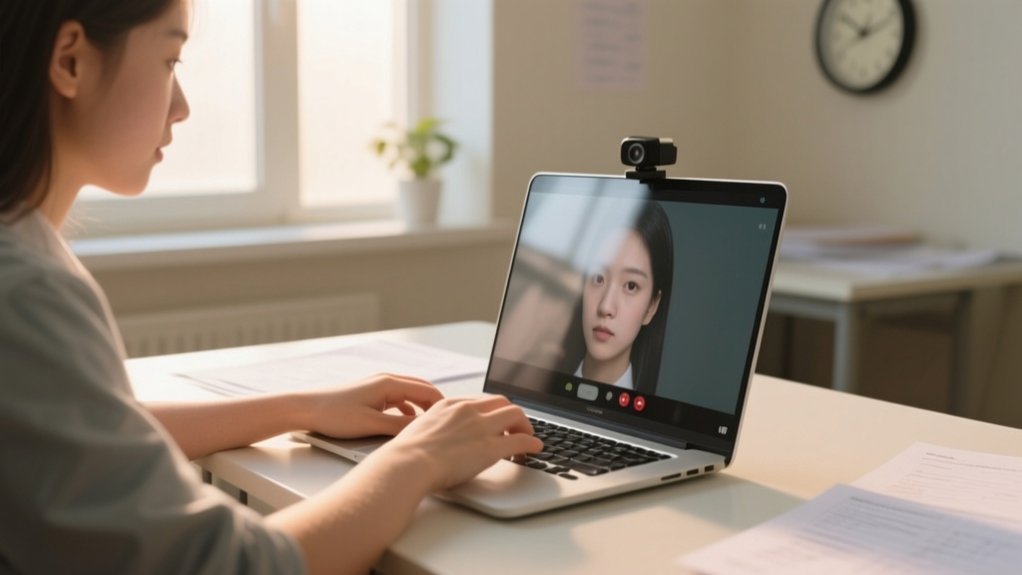
Respondus LockDown Browser uses your webcam to verify your identity by scanning your face and requiring a valid ID before starting the exam. It records video and audio throughout the assessment to monitor your environment for unauthorized materials, helping guarantee exam integrity.
Your camera also performs an initial 360-degree scan to confirm your surroundings are clear. If your webcam or microphone malfunctions, you’ll need to troubleshoot or contact support. Exploring these features will help you understand the full exam security process.
Key Takeaways
- The camera verifies student identity using facial recognition and requires showing a valid ID at exam start.
- It captures a 360-degree view of the environment to ensure no unauthorized materials are present.
- Continuous webcam recording monitors for cheating behaviors throughout the exam if Respondus Monitor is enabled.
- Recorded video is securely accessible only to authorized instructors and staff for exam integrity review.
- Webcam checks confirm proper device setup and clear visibility of the student before the exam begins.
How Respondus LockDown Browser Uses Your Webcam During Exams
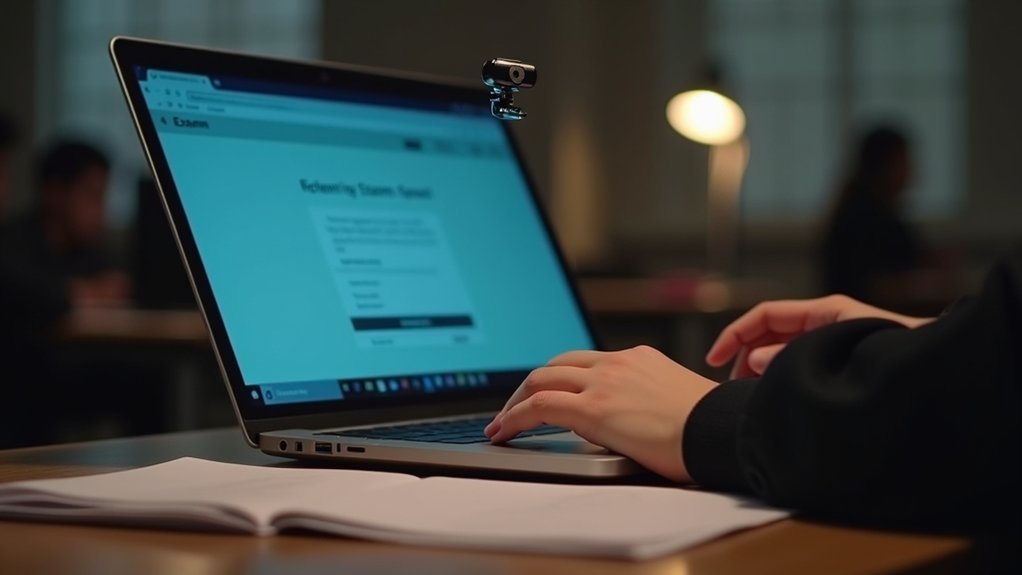
Although you might find it intrusive, Respondus LockDown Browser actively uses your webcam to verify your identity and maintain exam integrity. Before your exam begins, it performs a Webcam and microphone check to verify both are working properly. This prevents students from using faulty equipment or disabling monitoring.
During the test, the webcam records video to monitor your environment, helping to detect unauthorized behaviors or materials. This continuous recording prevents students from using prohibited devices or receiving outside assistance.
The webcam continuously records to monitor your environment and prevent unauthorized behavior or outside assistance during exams.
You’ll also need to show a valid ID at the start, confirming you’re the registered test-taker. After the exam, instructors review the recorded footage and flagged events to uphold academic honesty.
Rest assured, only authorized personnel can access these recordings, safeguarding your privacy throughout the process.
Why Respondus Uses Your Webcam for Identity Verification
You’ll use your webcam to verify your identity by showing a valid ID and scanning your environment before the exam begins.
This helps make sure that it’s really you taking the test and that your testing space is set up properly.
Don’t worry—any recorded footage is kept secure and can only be accessed by authorized staff.
This way, your privacy is protected throughout the whole process.
Identity Verification Process
Because maintaining academic integrity is essential, Respondus LockDown Browser uses your webcam to verify your identity throughout the exam. This identity verification process requires you to show a valid ID at the start and uses facial recognition to confirm you’re the same person during the test.
The webcam also scans your environment to guarantee no unauthorized materials or individuals are present. Recorded video is securely accessible only to authorized staff, protecting your privacy.
| Step | Purpose | Your Role |
|---|---|---|
| ID Verification | Confirm your identity | Show valid ID to webcam |
| Facial Recognition | Match your face during exam | Keep face visible |
| Environment Scan | Detect unauthorized aids | Show testing area |
| Video Recording | Secure review by staff | Stay within camera view |
Ensuring Exam Integrity
When you take an exam using Respondus LockDown Browser, the webcam plays an essential role in verifying your identity and preserving the integrity of the testing process. It requires you to present a valid ID and records video of your testing environment to guarantee compliance with exam rules.
Webcam monitoring captures both your face and surroundings, helping instructors confirm that no unauthorized materials or devices are present. This continuous observation is vital for maintaining exam integrity by deterring cheating and unauthorized assistance.
The recorded footage allows instructors to review your session afterward, assuring a fair and honest assessment.
Privacy And Security
Maintaining exam integrity goes hand in hand with protecting your privacy and security throughout the testing process. Respondus LockDown Browser uses your webcam for identity verification to confirm you’re the registered student taking the exam. It records video and audio, monitors your environment, and requires you to show a valid ID, ensuring a secure and fair exam setting. Only authorized staff can access these recordings, safeguarding your privacy.
| Feature | Purpose | Privacy & Security Impact |
|---|---|---|
| Webcam Video | Identity verification | Protects student privacy |
| Audio Recording | Environmental monitoring | Prevents unauthorized help |
| ID Verification | Confirm test-taker identity | Improves security |
| Facial Recognition | Fair, unbiased verification | Respects demographic fairness |
| Controlled Access | Restricts video access | Maintains data confidentiality |
What Happens During the Webcam Check Process?
Before your exam starts, you’ll go through a quick Webcam Check to make sure your webcam and microphone are working just right.
You’ll also need to show a valid ID and give your testing area a quick scan to ensure it meets all the proctoring requirements.
This step is important because it helps keep the exam fair and confirms that your setup is all set to go.
Webcam Functionality Verification
How do you guarantee your testing environment is secure before starting an exam with Respondus LockDown Browser? The system requires you to complete a Webcam Functionality Verification to verify your equipment is properly set up.
During this step, you’ll confirm that your webcam and microphone are working correctly, allowing Respondus to monitor the exam environment effectively. This process helps prevent technical issues that could disrupt your test or compromise exam integrity.
By verifying your webcam’s function, Respondus verifies it can accurately capture your image and surroundings throughout the assessment. This verification occurs entirely within the LockDown Browser, maintaining both security and privacy.
Completing this step is essential for a smooth, secure testing experience free from impersonation or unauthorized assistance.
Environment And ID Scan
Although you’ve already verified your webcam’s functionality, the Environment and ID Scan takes security a step further by requiring you to show a valid ID and scan your surroundings before starting the exam.
During this webcam check, you’ll hold your valid ID up to the camera to confirm your identity.
Next, you’ll slowly pan your webcam around your environment to guarantee no unauthorized materials or people are present.
This process captures video footage of both you and your testing area, helping instructors verify that the registered student is taking the exam under appropriate conditions.
Completing this step is essential to enable Respondus Monitor, which records video throughout your exam for later review, maintaining exam integrity and supporting academic honesty.
How Respondus Monitor Records Your Video and Audio

Since Respondus Monitor relies on your webcam, it records both video and audio throughout your exam to maintain academic integrity and verify your identity.
Before the assessment begins, Respondus Monitor is enabled with a Webcam Check to guarantee your camera and microphone work properly.
Once confirmed, the software continuously captures your video and audio during the exam session. This real-time recording allows instructors to monitor you remotely and verify that you’re the test taker.
The software continuously records your video and audio, enabling instructors to verify your identity and monitor remotely.
All recorded footage is securely stored and accessible only to authorized personnel, safeguarding your privacy is respected.
The system’s algorithm reviews these recordings, flagging any unusual behavior for instructor review.
Why and When Respondus Scans Your Testing Environment
Before your exam begins, Respondus will activate your webcam to check out your testing environment. This is to make sure there aren’t any unauthorized materials or distractions around.
You’ll be asked to show your ID and do a 360-degree scan of your room.
Don’t worry, this whole process is recorded so your instructor can review it later. It’s all about keeping the exam fair by keeping an eye on your surroundings right from the start.
Environment Scan Purpose
When you start your exam with Respondus LockDown Browser, the software uses your camera to perform an environment scan by having you show a valid ID and capture a 360-degree view of your testing area.
This environment scan guarantees your surroundings are free from unauthorized materials and that no one else is present, maintaining exam integrity.
The camera check is mandatory and must be completed before you can begin your test. By agreeing to the Terms of Use, you consent to this camera usage during the environment scan and throughout the exam.
The recorded video is securely stored and accessible only to instructors and authorized staff, safeguarding your privacy while verifying proper testing conditions.
This process upholds fairness and deters cheating in your online assessments.
Timing Of Camera Use
Although you’ll only see the camera activate at specific times, Respondus LockDown Browser uses it strategically to confirm exam security.
Before your exam starts, the camera performs an environment scan, requiring you to show a valid ID and complete a 360-degree view of your surroundings. This initial monitoring confirms no unauthorized materials are present.
Once the exam begins, if Respondus Monitor is enabled, the camera remains active, continuously recording video and audio to monitor your behavior.
This ongoing camera use deters cheating and provides a record for instructors to review after the exam.
You’ll be informed beforehand about when the camera activates, confirming transparency and privacy, with only authorized staff accessing the recordings strictly for maintaining academic integrity during the testing process.
Who Can Access and Review Your Webcam Recordings?
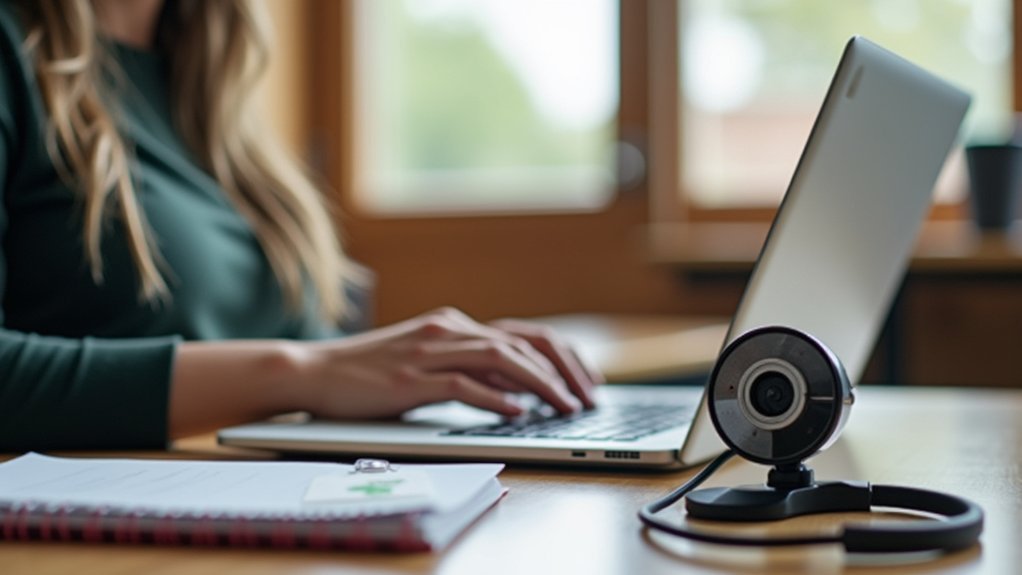
Who exactly can access and review your webcam recordings during an exam? Only authorized personnel, such as your instructor and approved staff at your institution, have access to these webcam recordings.
Respondus employees can’t view your video data unless the institution’s administrators explicitly grant permission. These recordings help verify your identity and uphold academic integrity.
Privacy safeguards guarantee that only authorized personnel review your footage, maintaining your confidentiality.
Moreover, your recorded data is only analyzed if the system’s algorithm flags potential issues during the exam, which limits unnecessary viewing of your recordings.
This approach balances exam security with respect for your privacy by restricting access to those directly responsible for administering and monitoring your assessments.
How Respondus Safeguards Your Privacy and Data Security
You can trust Respondus to keep your data safe with strict security protocols and by following privacy compliance standards.
The system limits who can access your webcam recordings, so only authorized people can see them. Plus, all your data is encrypted to stop any unauthorized use.
These protections work together to make sure your personal information stays secure throughout the entire exam process.
Data Protection Measures
While taking your exam with Respondus LockDown Browser, you can trust that your privacy and data security are top priorities. Respondus implements robust data protection measures to confirm student privacy throughout the exam process.
Only authorized personnel, such as your instructors and approved staff, can access recorded webcam videos, preventing unauthorized viewing. Respondus employees access video data solely when permitted by your institution’s administrators.
The facial recognition technology undergoes rigorous testing to assure fairness across diverse demographics, promoting equitable treatment.
Furthermore, Respondus conducts regular accessibility audits to maintain compatibility with accommodation tools, further safeguarding your data.
These measures collectively protect your personal information and uphold strict standards. So you can focus on your exam with confidence in the security of your privacy and data.
Privacy Compliance Standards
Building on the commitment to protecting your personal information, Respondus LockDown Browser adheres strictly to established privacy compliance standards to safeguard your data security.
The platform complies with key regulations such as FERPA, GDPR, and CCPA, guaranteeing your student data is handled with the utmost care and confidentiality.
Only authorized instructors and approved staff can access recorded video data, maintaining strict control over your information.
Furthermore, Respondus conducts regular accessibility audits to support students requiring accommodations, fostering an equitable testing environment.
Their facial recognition technology is rigorously tested for fairness across diverse demographics, assuring unbiased treatment.
How Respondus Ensures Fairness in Facial Recognition
Because fairness is critical in assessment environments, Respondus employs facial recognition technology that’s rigorously examined across diverse demographics such as age, gender, and skin tone.
This guarantees the system treats all test-takers equitably while minimizing bias.
You’ll find that Respondus achieves fairness through regular audits and updates to refine algorithms, sensitivity adjustments to reduce false positives and negatives, and systematic testing to confirm consistent performance across diverse users.
What Happens If Respondus Flags Unusual Exam Behavior?
If Respondus Monitor flags unusual exam behavior, it uses the recorded video to help your instructor review the situation for potential academic dishonesty.
During the exam, the system captures both video footage and screen capture to monitor your environment and actions.
When flagged behaviors occur, such as looking away excessively, unauthorized materials in view, or the presence of others, these incidents are noted.
The algorithm analyzes patterns to detect possible cheating, and your instructor receives a detailed report highlighting these flagged behaviors alongside the relevant video and screen capture evidence.
This allows your instructor to objectively assess the exam’s integrity and decide on the validity of your attempt based on the recorded data and observed behaviors.
How to Prepare Your Webcam and Testing Environment
Before you begin your exam, you’ll need to guarantee your webcam and testing environment meet Respondus LockDown Browser’s requirements.
First, verify your webcam is fully functional by completing the Webcam Check, which tests both video and audio capabilities.
Next, prepare your testing environment by scanning the area with your webcam to show that no unauthorized materials or devices are within reach.
Use your webcam to scan your surroundings, ensuring no unauthorized materials or devices are within reach.
Finally, position your webcam so it captures a clear view of your face and workspace throughout the exam.
Verify adequate lighting to avoid shadows or glare.
Remove notes, textbooks, and electronic devices from your desk.
Choose a quiet, private space free from interruptions.
Following these steps guarantees a smooth exam experience and compliance with monitoring protocols.
What To Do If Your Webcam or Microphone Isn’t Working
Confirming your webcam and microphone work correctly is a key step in preparing for your exam with Respondus LockDown Browser.
Before starting your quiz, conduct a Webcam Check within the Respondus Monitor setup to verify both devices function properly and meet specifications.
If your webcam or microphone isn’t working, first restart your device and confirm all connections are secure.
Next, check your computer’s settings to confirm that Respondus LockDown Browser has permission to access your webcam and microphone.
If problems continue, consult the Respondus Support website or contact your institution’s technical support for further assistance.
Addressing these issues early helps confirm a smooth exam experience and prevents delays during identity verification and environment scanning.
How Respondus Monitor Differs From Live Proctoring
While live proctoring involves real-time supervision during exams, Respondus Monitor takes a different approach by recording video and audio for later review.
Using the LockDown Browser, Respondus Monitor captures your exam environment without needing someone to watch live.
Respondus Monitor records your exam setting through LockDown Browser, eliminating the need for live supervision.
This method offers distinct advantages compared to live proctoring: you can schedule exams flexibly, avoiding fixed proctor availability. Algorithms analyze recordings, flagging suspicious behavior for instructors to review.
Many students find this less stressful, as it reduces pressure from constant live observation.
Respondus Monitor improves exam integrity while providing convenience and comfort. By recording your session instead of monitoring live, it balances security with a more flexible, user-friendly experience.
This approach sets it apart from traditional live proctoring methods.
Tips for Staying Comfortable While Being Recorded
Using Respondus Monitor means your exam session will be recorded, which can feel unfamiliar at first. To stay comfortable, make sure you’re in a well-lit area so the camera clearly captures your face. Adjust your webcam beforehand to frame your face and surroundings properly.
Practice with the Startup Sequence to check for technical issues and get used to being recorded. Maintain a calm demeanor and focus on the exam content rather than the camera. Remember, the camera is a monitoring tool; you don’t need to change your behavior.
Taking deep breaths and reminding yourself that many students use the same system can help ease anxiety. These steps will help you remain composed and comfortable during your recorded exam session.
Additional Resources for Respondus LockDown Browser Users
To help you navigate Respondus LockDown Browser effectively, several resources are available that address common technical issues and procedural questions.
Using these resources can guarantee your LockDown Browser and webcam function smoothly during exams, reducing stress and technical interruptions.
Here are key resources to take into account:
Official Respondus Support Site: Offers detailed guides on webcam setup, LockDown Browser installation, and troubleshooting.
Your Institution’s Testing Center: Provides personalized assistance and answers about exam protocols involving the webcam.
Pre-Exam Webcam Check Tool: Allows you to verify your camera and microphone are working properly before starting the test.
Leveraging these tools helps you prepare confidently, guaranteeing the LockDown Browser captures necessary video without issues, while maintaining exam integrity.
Frequently Asked Questions
Can I Use an External Webcam With Respondus Lockdown Browser?
Yes, you can use an external webcam with Respondus LockDown Browser.
Just make certain it’s properly connected and recognized by your computer before starting the exam.
It’s a good idea to test your external webcam ahead of time using the Webcam Check feature to verify it meets the requirements.
Using an external webcam often improves video quality and positioning, helping you avoid technical problems during your online assessment.
Does Respondus Lockdown Browser Record Continuously or Only at Specific Times?
Respondus LockDown Browser doesn’t record continuously; it activates the camera at specific times during your exam.
It starts with a webcam check where you verify your identity and testing environment.
During the exam, the camera only records if Respondus Monitor detects potential issues.
This targeted recording helps maintain your privacy while ensuring exam integrity.
The footage is saved securely and reviewed only by authorized instructors or staff.
Is It Possible to Review My Own Recorded Exam Footage?
About 75% of institutions restrict student access to their recorded exam footage.
You generally can’t review your own Respondus Monitor videos because they’re intended for instructor review to guarantee exam integrity.
However, you can request access, but it’s up to your instructor and institution’s policies whether you get to see the recordings.
If you want to review your footage, reach out to your instructor for guidance on the process.
What Happens if My Camera Disconnects During an Exam?
If your camera disconnects during an exam, the system flags this event for your instructor to review as a potential integrity issue.
You should try reconnecting your camera immediately to avoid an incomplete submission.
Before starting, make sure your webcam and microphone work properly by passing the Webcam Check.
It’s also a good idea to practice with Respondus Monitor beforehand to identify and fix any technical problems.
Are There Any Specific Webcam Resolution Requirements for Respondus Lockdown Browser?
There aren’t any strict webcam resolution requirements for Respondus LockDown Browser, but a standard 720p resolution generally works well for clear video capture.
You should test your webcam beforehand to guarantee it functions properly, both for video and audio.
Using a well-lit environment helps the camera capture better images, boosting monitoring quality.
High-quality webcams can amplify clarity, but as long as your camera records clear video, it should be sufficient.
Conclusion
In using Respondus LockDown Browser, your webcam plays a key role in ensuring exam integrity through identity verification and environment checks. Remember, “an ounce of prevention is worth a pound of cure.” These measures help prevent cheating and protect your hard work.
If your camera or microphone acts up, address it promptly to avoid disruptions. Staying informed and prepared will make your exam experience smoother and more secure.