Do Smart TVs Have Built-In Cameras?
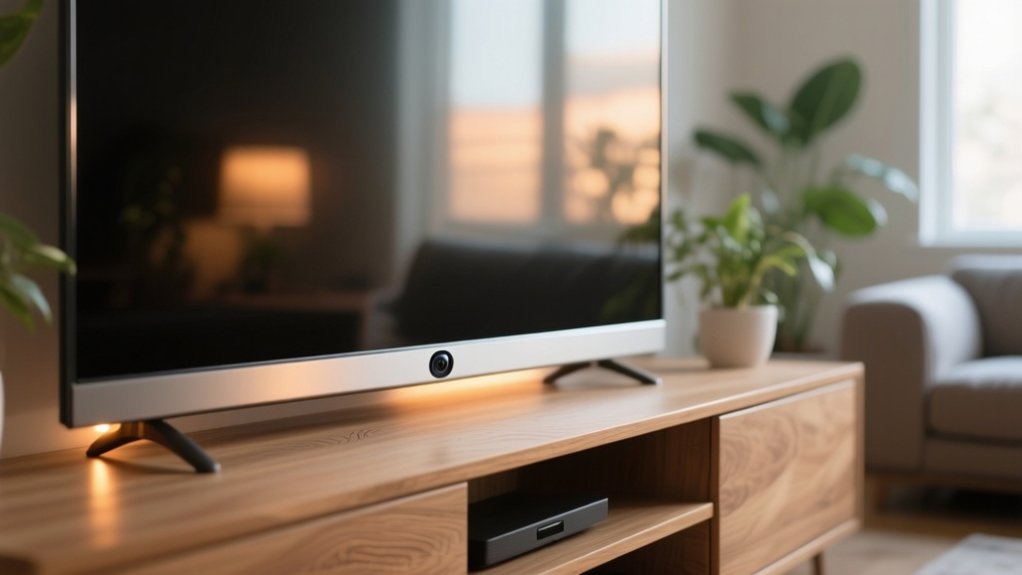
Yes, some Smart TVs do have built-in cameras, especially models aimed at video calling and gesture controls, like Samsung’s F Series or LG’s Cinema 3D. Cameras are usually discreetly placed at the top bezel and may include privacy shutters.
However, not all models include cameras, so you’ll want to check your specific brand and model. Since built-in cameras can raise privacy concerns, it’s important to learn how to identify, disable, and secure them effectively.
Key Takeaways
- Many Smart TVs, especially certain Samsung and LG models, include built-in cameras typically located at the top bezel for video calls and gesture control.
- Cameras are often hidden behind retractable shutters to protect user privacy when not in use.
- Built-in cameras enable features like video calling, facial recognition, and gesture navigation on compatible Smart TVs.
- Privacy risks exist due to potential unauthorized access; users should disable cameras and review privacy settings regularly.
- Alternatives to built-in cameras include external USB webcams and mobile devices for video calls on Smart TVs.
How to Tell If Your Smart TV Has a Built-In Camera
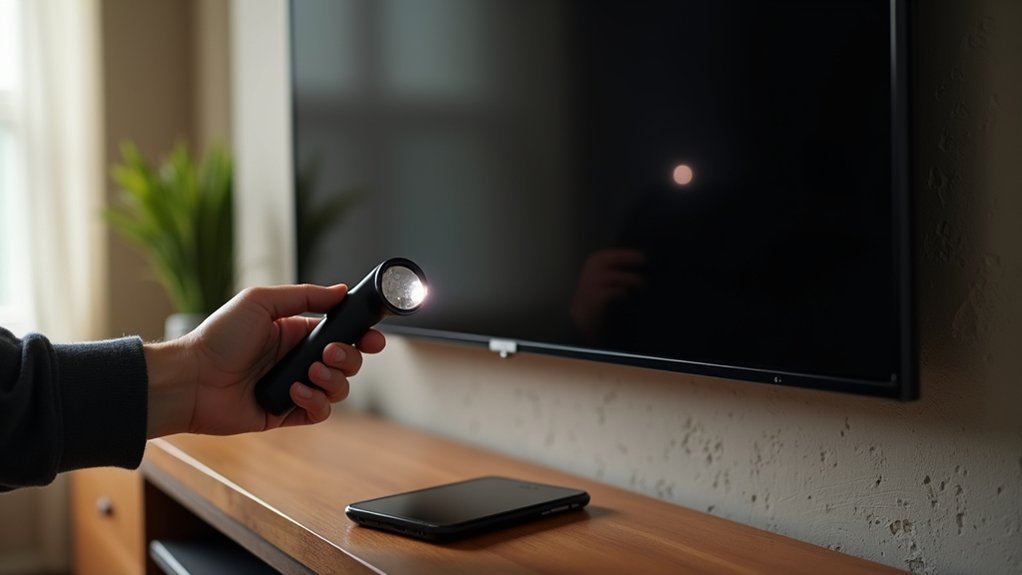
Wondering how to find out if your Smart TV has a built-in camera? Start by checking the owner’s manual, which usually lists all features, including any built-in cameras.
If you don’t have the manual, locate your Smart TV’s model number and search online for its specifications. Some models, such as the Samsung F Series or LG Cinema 3D, often include cameras.
You can also investigate your Smart TV’s privacy settings to see if camera access is mentioned or can be toggled on or off.
Furthermore, using apps like Google Home may help identify connected devices and reveal camera capabilities.
When unsure, reaching out to the manufacturer’s customer service with your model number is a reliable way to confirm whether your Smart TV includes a camera.
Where Smart TV Cameras Are Usually Located
Smart TV cameras are usually positioned discreetly to blend with the design, often found at the top center or in a corner of the screen bezel.
These smart TV cameras are located to maintain aesthetics while offering functionality, sometimes hidden behind retractable shutters for privacy.
Smart TV cameras blend seamlessly into design, often concealed behind retractable shutters to ensure user privacy.
To identify their exact position, inspect the bezel closely for small circular lenses.
If you’re unsure, consulting the user manual can clarify whether camera features are included and where they’re located.
Some models even integrate microphones alongside cameras, enhancing voice and video interaction.
Moreover, apps like Google Home can help you locate cameras on compatible devices by displaying connected features.
Common Smart TV Models That Include Cameras
You’ll find that several Samsung models, like the F Series and the Smart Monitor with its attachable SlimFit camera, come equipped with cameras for video calls and more.
It’s pretty handy if you want to chat with friends or family right from your TV.
LG also includes built-in cameras in some of their smart TVs, such as the Cinema 3D lineup, which adds some cool interactive features.
Samsung Camera-Enabled Models
Although not all models include this feature, many Samsung TVs come equipped with built-in cameras that support video calling and facial recognition. For instance, Samsung’s F Series smart TVs integrate cameras discreetly within the bezel, enabling seamless video calls and secure user authentication through facial recognition.
Moreover, Samsung’s Smart Monitor offers a separate SlimFit camera designed specifically for video conferencing. Keep in mind that camera availability varies by model and year, so you should check the specifications before purchasing.
Beyond video calling, these cameras often enable gesture control and automatic content recognition, enhancing your interaction with the TV.
If you want smart TVs with cameras from Samsung, focus on models like the F Series or those explicitly listing video calling and facial recognition features to make certain you get the functionality you need.
LG Smart TV Cameras
Following Samsung’s approach to integrating cameras, LG also offers several smart TV models with built-in cameras designed for video calls and facial recognition.
Some LG Smart TV models, like the Cinema 3D series, feature cameras typically positioned at the top of the screen, often concealed behind a retractable shutter to protect your privacy.
Along with the camera, these TVs usually include microphones, which can raise further privacy concerns if left active.
To guarantee your privacy, you should check your model’s specifications via the owner’s manual or LG’s website.
When the camera and microphone aren’t in use, it’s best to disable camera access through the TV’s settings.
Doing so helps minimize privacy risks associated with these smart TVs and their integrated features.
Features Enabled by Smart TV Cameras
When smart TVs come equipped with cameras, they reveal a range of interactive features that transform how you engage with your device. Smart TVs with cameras enable video calls, letting you connect with friends and family easily.
Gesture control and voice commands offer hands-free navigation, making interaction seamless. Facial recognition personalizes your viewing experience by adjusting settings to individual users.
Moreover, these cameras support interactive apps and content creation, enhancing engagement and creativity.
| Feature | Description |
|---|---|
| Video Calls | Connect remotely via apps like Skype |
| Gesture Control | Navigate menus without a remote |
| Voice Commands | Control TV functions with your voice |
| Facial Recognition | Customize settings based on viewer identity |
| Content Creation | Record and share videos directly from the TV |
Smart TV Camera and Remote Microphone Privacy Risks
Since many smart TVs come with built-in cameras and microphones, you should be aware of the significant privacy risks they pose.
Popular smart TV models often include camera and microphone features for voice control, but these can inadvertently record private moments or conversations.
Automatic Content Recognition technology also monitors your viewing habits, creating detailed profiles that might be shared with third parties.
Vulnerabilities in firmware or unsecured Wi-Fi can lead to unauthorized access, allowing hackers to spy through your camera and microphone.
To mitigate these risks, you need to regularly review your smart TV’s privacy settings and understand how data is collected and used.
Being proactive helps protect your personal information from potential surveillance and privacy breaches associated with these devices.
How to Disable or Cover Your Smart TV Camera
You can disable your smart TV’s camera through the privacy settings in the main menu, if that option is available.
Just look around in the settings, and you might find a toggle to turn off the camera.
If your TV has a physical camera, another simple trick is to cover the lens with something opaque like tape or a dedicated camera cover.
This way, you block the lens completely.
Taking these steps is a smart move—it helps protect your privacy and cuts down the risk of someone accessing your camera without permission.
Disabling Camera Features
Although smart TVs offer convenient camera features, disabling them can markedly improve your privacy. Start by accessing the privacy settings in your TV’s main menu, where you can find the option for disabling camera features. This step effectively shuts off the camera inside your device, reducing potential unauthorized access.
Furthermore, keep your TV’s firmware and software updated to patch vulnerabilities related to camera functions. While many smart TVs offer built-in privacy shutters or manual covers, relying solely on software controls mightn’t be enough. For increased physical protection, consider external solutions like opaque tape.
If you’re unsure about the exact process, consult your user manual or the manufacturer’s website for model-specific guidance. Taking these steps guarantees better control over your smart TV’s camera and improves your privacy.
Physical Camera Covers
Wondering how to physically secure your smart TV camera? Many smart TVs, especially from brands like Samsung and LG, come with built-in cameras that you can disable through privacy settings.
However, to add an extra layer of protection against unwanted surveillance, using physical covers is highly effective.
Start by inspecting the top of your smart TV for the camera lens or a small circular opening. You can then apply opaque tape or purchase a dedicated camera cover that sticks over the lens when the camera isn’t in use.
This simple step physically blocks the camera, ensuring it can’t capture images even if the software settings fail to disable it.
Combining privacy settings with physical covers gives you the best defense against unauthorized access.
How to Secure Your Smart TV From Hackers
Since smart TVs connect to the internet and collect data, securing them from hackers is essential to protect your privacy.
You should adjust privacy settings and disable the camera if your model includes one. This limits unauthorized access to personal information.
Here’s how to secure your smart TV:
- Regularly install firmware updates to fix security vulnerabilities.
- Change default login credentials and use strong passwords for your Wi-Fi and TV accounts.
- Disable Automatic Content Recognition and unnecessary internet features to reduce data sharing.
- Consider using a VPN on your router to encrypt your TV’s internet traffic.
Alternatives to Using a Smart TV Camera for Video Calls
Several practical alternatives exist if you want to avoid using your smart TV’s built-in camera for video calls. You can connect external USB webcams to your computer, which often deliver superior video quality and advanced features like auto-focus.
Tablets and laptops with built-in cameras offer mobility and flexibility, making video calls easier anywhere in your Smart Home. Smartphones also serve as convenient video devices through dedicated conferencing apps.
Moreover, smart assistants with integrated cameras, such as Google Nest or Amazon Echo Show, provide optimized video call experiences and improved privacy controls like physical camera covers.
These options let you maintain privacy while leveraging high-quality video capabilities without relying on your smart TV’s camera, enhancing both security and call performance.
Tips to Protect Your Privacy When Using a Smart TV
Although smart TVs offer numerous convenient features, they can also pose privacy risks if you don’t take proper precautions. To protect your privacy, follow these essential tips:
- Regularly disable the camera and microphone via your TV’s privacy settings to prevent unauthorized access.
- Keep your firmware updates current; manufacturers release patches that fix security vulnerabilities.
- Review and adjust Automatic Content Recognition (ACR) settings to limit data collection on your viewing habits.
- Use physical covers on the camera when not in use, adding an extra layer of protection.
Additionally, consider using a VPN to encrypt your internet traffic, which reduces the risk of hackers exploiting your Smart TV.
These protective measures help you maintain control over your personal data and privacy.
Frequently Asked Questions
Can Smart TV Cameras Be Used for Home Security Monitoring?
Yes, you can use smart TV cameras for home security monitoring, but they’ve limitations.
These cameras are mainly designed for video calls, so their quality and features mightn’t match dedicated security cameras.
You should disable the camera when not in use and keep your TV’s firmware updated to prevent unauthorized access.
For better security, consider combining your smart TV camera with specialized security devices to cover all angles effectively.
Do Smart TV Cameras Support Infrared or Night Vision?
Sure, your smart TV camera can magically see in the dark if you believe in fairy tales.
In reality, these cameras don’t support infrared or night vision. They’re built for well-lit video chats, not covert surveillance missions.
If you want to spy on your living room after lights out, you’ll need a proper security camera with night vision.
Don’t expect your TV to moonlight as a nocturnal guardian.
Are Smart TV Cameras Compatible With Third-Party Apps?
Smart TV cameras rarely support third-party apps directly, as manufacturers often restrict camera use to their own software for security.
You’ll need to check your TV’s operating system and model to confirm compatibility.
Some platforms, like Samsung’s Tizen or LG’s webOS, limit camera access, so third-party apps mightn’t work.
Always review your user manual and consider privacy risks before using any external applications with your smart TV camera.
How Do Smart TV Cameras Impact Device Performance or Battery Life?
You might imagine your smart TV slowing down or draining power because of its camera, but that’s rarely the case.
Since smart TVs stay plugged in, battery life isn’t affected.
When you use video calls, the camera can momentarily use more processing power, but manufacturers optimize performance to keep things running smoothly.
Regular updates also help prevent any camera-related slowdowns, so you can enjoy features without worrying about performance dips.
Can Smart TV Cameras Be Upgraded or Replaced by Users?
You generally can’t upgrade or replace smart TV cameras because they’re built into the TV’s structure.
Trying to do so might void your warranty or damage internal parts.
Some models let you attach external cameras, but that depends on your TV’s compatibility.
For better features, consider using an external USB camera if your smart TV supports it.
Always check your user manual before making changes.
Conclusion
Smart TVs with built-in cameras can offer convenient features, but they also pose privacy risks that you shouldn’t ignore. Like leaving a window open in a busy street, an unsecured camera can expose your personal space to unwanted eyes.
To protect yourself, always check your TV’s settings, cover or disable the camera when not in use, and keep your software updated. Staying informed helps you enjoy smart technology without compromising your privacy.