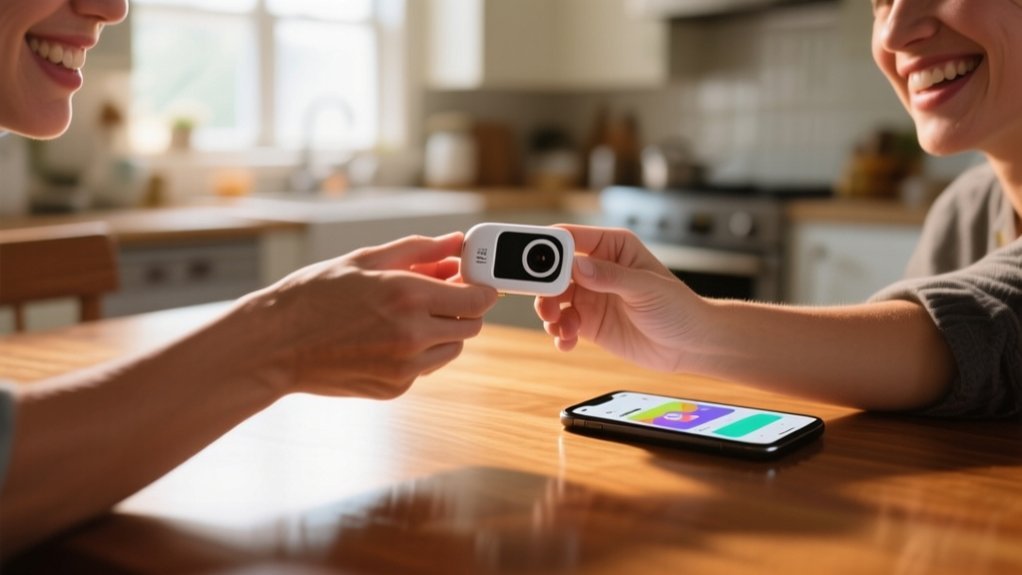
How to Share Blink Camera Access in 5 Easy Steps
To share your Blink camera access in 5 easy steps, first verify you and the people you want to share with have the Blink app and accounts ready.
Next, open the app, go to Settings, and add the users by entering their email addresses. Then, set their permissions as either admin or viewer.
You can manage or remove their access anytime through the app. Finally, verify and trust their devices for smooth login.
Keep following to uncover more helpful tips.
Key Takeaways
- Ensure the invited user has installed the Blink app and created their own Blink account.
- Open Blink app, go to Settings > Account and Privacy > Manage Mobile Devices, then tap “Add User.”
- Enter the new user’s email address to send an invitation to join your Blink system.
- Confirm the invited user accepts the invitation and installs the Blink app to gain access.
- Set appropriate permissions for the user as admin or viewer to control their access level.
Get Your Blink Account and App Ready
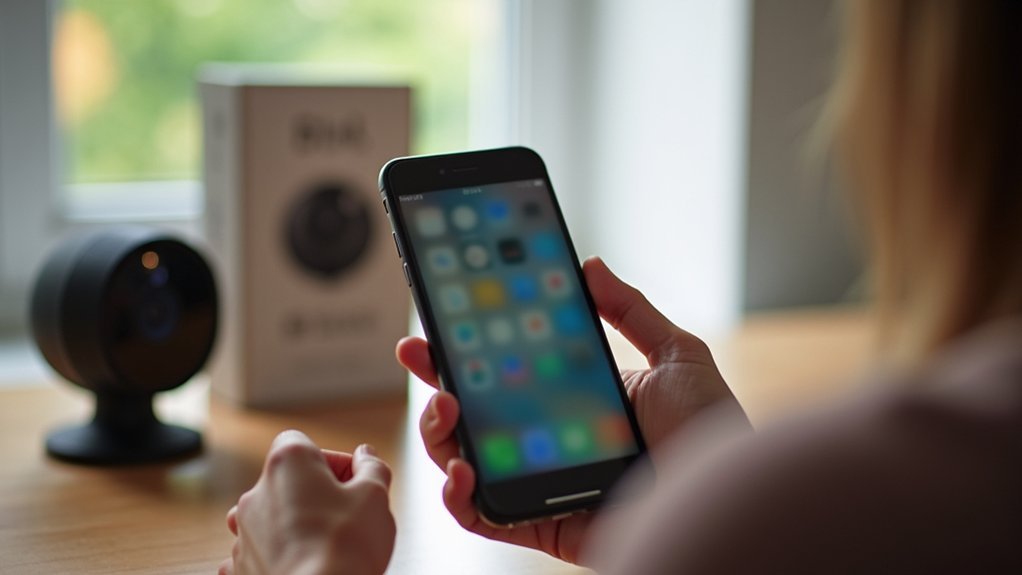
Before you can share access to your Blink camera, you’ll need to get your Blink account and app ready.
Start by downloading and installing the Blink Home Monitor app on your mobile device from the iOS or Android app store.
Once installed, create a Blink Account by entering your email and following the on-screen setup instructions.
Make sure your Blink camera is set up properly, powered, and connected to your local Wi-Fi.
Keep the Blink app updated to the latest version to guarantee smooth operation.
With your account ready, you can access the Blink app to manage settings and prepare for sharing.
This setup lets you access the camera from multiple devices easily and assures you’re ready to grant others access when needed.
Add Users to Your Blink Account
To add users to your Blink account, start by ensuring each person has installed the Blink app and created their own account with a unique email.
Then, as the primary account holder, follow these steps:
- Open the Blink app and go to Settings > Account and Privacy > Manage Mobile Devices.
- Tap “Add User” and enter the new users’ email addresses to send invitations.
- Confirm that each invited user accepts the invitation and installs the Blink app to gain access to their Blink.
- Once added, you can manage user permissions to control their level of access.
Set Permissions for Shared Users
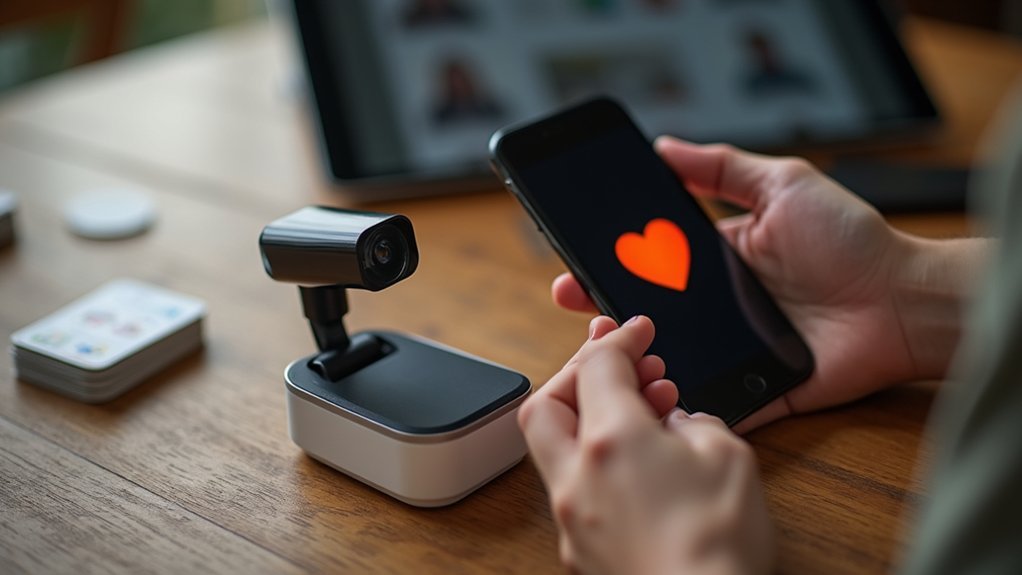
When you want to control what shared users can do in your Blink app, head to Settings and select the user whose permissions you want to adjust.
As the primary account holder, you can set permissions by assigning either admin or viewer roles.
Admin users get full access to camera features, including managing settings and adding or removing users.
Admin users have complete control, including adjusting settings and managing user access.
Viewer users, on the other hand, can only view camera feeds and receive notifications.
This access control helps you tailor user permissions based on each person’s needs, ensuring your Blink camera network stays secure.
Any changes you make take effect immediately, allowing you to adjust access in real time as your security needs evolve.
This makes managing shared users straightforward and efficient.
Manage and Remove User Access
Managing who can access your Blink cameras goes beyond setting user permissions.
You also need to keep an eye on which devices are signed into your account. To manage and remove user access effectively, follow these steps in the Blink app:
- Open the Blink app, go to Settings, then select Account and Privacy.
- Tap Manage Mobile Devices to see all devices that accessed your account in the last 30 days.
- To remove access, tap Remove next to the device you want to log out. This immediately revokes device access.
- Removed devices must re-sign in and complete multi-factor authentication to regain access, ensuring your account’s security.
Regularly managing devices helps keep your Blink account secure.
It also limits access to trusted devices only.
Verify and Trust Your Blink Devices
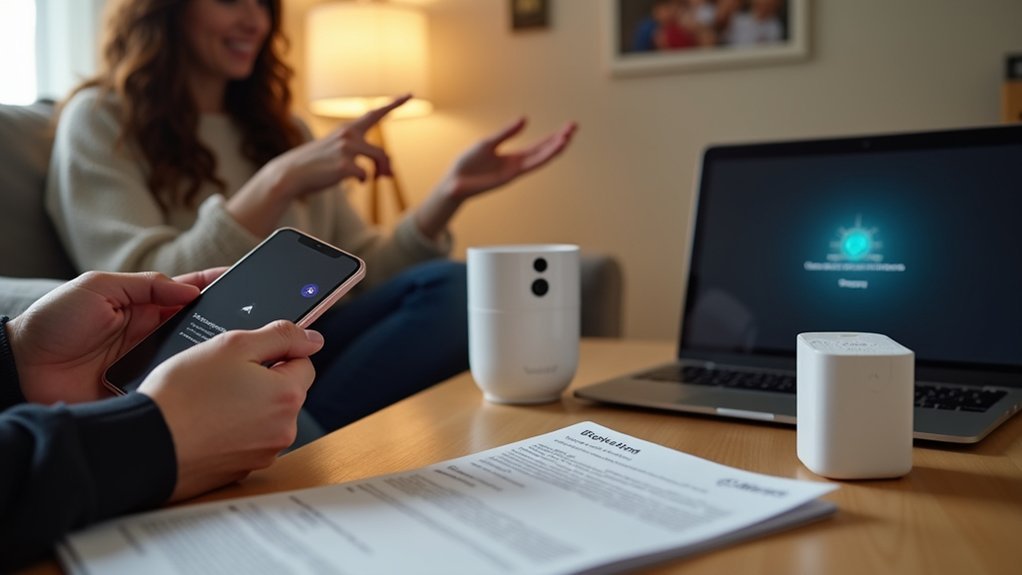
Although you control who accesses your Blink account, verifying and trusting your devices adds an extra layer of convenience and security.
To verify, open the Blink app, go to Settings, select Account and Privacy, then tap Manage Mobile Devices.
You’ll receive an SMS verification code—enter it in the app to see all devices that accessed your account in the past 30 days.
As the primary account holder, you can manage and remove device access anytime.
Trusting a device lets you skip the verification code for future logins, though this resets if you change your account password.
To remove a device, just tap Remove next to its name. This immediately logs it out and requires re-signing in for further access.
Following these steps helps you control and trust devices linked to your Blink account.
Frequently Asked Questions
Can I Share Blink Camera Access With Users Outside My Country?
Yes, you can share Blink camera access with users outside your country.
Just make sure they’ve a stable internet connection and download the Blink app.
Each person needs to create their own Blink account with a unique email.
You’ll send them an invitation via email, which they accept to get access.
Make sure everyone uses the latest app version to avoid issues, and remember time zones might affect response times.
Does Sharing Access Affect My Blink Subscription or Plan?
Sharing access doesn’t affect your Blink subscription or plan at all. Your subscription stays tied to your primary account, and anyone you share with uses your existing plan without needing their own.
You keep full control over subscription features and user permissions.
Just make sure to review who’s access regularly, so only trusted people can view your cameras. This helps keep your security intact while sharing.
Can Shared Users Receive Motion Alerts From the Blink Cameras?
Yes, shared users can receive motion alerts from Blink cameras if you grant them the right permissions in the Blink app.
Make sure notifications are enabled for their specific user profile within your camera settings.
Each shared user must have the Blink app installed and be signed in to their account.
You can customize alert preferences based on their role, ensuring they get real-time updates about any detected activity.
What Happens if a Shared User Deletes the Blink App?
If you delete the Blink app as a shared user, you’ll lose access to the camera network and won’t receive motion alerts or view feeds.
To regain access, you’ll need to reinstall the app and sign in again, completing multi-factor authentication.
Is It Possible to Share Access to Specific Cameras Only?
No, you can’t share access to specific Blink cameras only.
When you add someone to your Blink account, they get access to all cameras linked to that account.
The app doesn’t let you customize permissions per camera.
If you want limited access, you’ll need to create separate Blink accounts for different cameras, but that means managing each account individually.
Always review and update permissions to keep your system secure.
Conclusion
Sharing your Blink camera access is simple and secure when you follow these straightforward steps. By getting your account ready, adding users, and setting specific permissions, you’re safeguarding your space with smart sharing.
Manage access carefully and verify devices to keep everything secure. Stay savvy, stay safe, and share seamlessly.
Remember, managing multiple users means maintaining maximum security while making monitoring more manageable. Start sharing smartly and see how simple security can be!