How to Reset Blink Camera: Step-by-Step Guide for All Models
Smart home security works best when every device responds quickly and reliably. A Blink camera that stops syncing, lags, or disconnects can disrupt that sense of safety and control. Resetting the device restores normal communication and clears common technical glitches that build up over time.
Understanding how to reset Blink camera systems helps maintain consistent performance without unnecessary frustration. A proper reset refreshes the connection between the camera, sync module, and mobile app, allowing the system to function the way it was designed. This process often resolves setup errors, app crashes, or unresponsive devices.
Many users hesitate to reset their camera, assuming it is complicated or risky. In reality, the process is straightforward and takes only a few minutes. Following the correct reset steps protects saved settings while bringing the camera back to a stable working state.
Learning this reset method gives confidence and control over home security equipment. With the right guidance, the camera can be restored quickly, ensuring uninterrupted monitoring and peace of mind.
How to Reset Blink Camera?
Resetting a Blink camera is often the most effective way to fix performance issues such as connection drops, delayed motion alerts, or problems syncing with the app. Over time, minor software glitches or network changes can affect how the camera communicates with the sync module and Wi-Fi network. A reset clears these temporary issues and gives the device a fresh start.
Before beginning the reset process, it is important to ensure the camera has sufficient battery power and that the Blink app is installed and updated on your phone. A weak battery or outdated app can interfere with the reset and setup process. Taking a moment to prepare helps avoid repeating steps later.
To reset the camera, locate the small reset button on the back or bottom of the device. Using a paper clip or similar tool, press and hold the button until the indicator light changes, signaling that the reset has started. This action removes the camera from its current configuration so it can reconnect properly.
Once the camera resets, open the Blink app and follow the on-screen instructions to add the device again. This step reconnects it to the sync module and Wi-Fi network. Keeping the phone close to the camera during setup ensures a smooth connection.
Knowing how to reset Blink camera devices allows users to resolve common issues quickly without professional help. Regular maintenance like this keeps the security system reliable, responsive, and ready to protect the home without unnecessary interruptions.
When Should You Reset a Blink Camera?
A Blink camera reset becomes necessary when the device starts showing unusual behavior that affects daily monitoring. One of the most common signs is frequent disconnection from Wi-Fi or the sync module, even when the internet connection is stable. These interruptions can prevent live view access and delay motion alerts, reducing the effectiveness of the security system.
Another situation that calls for a reset is when the camera fails to respond within the Blink app. If commands such as live streaming, arming, or disarming do not work properly, a reset helps restore communication between the camera and the app. This often resolves issues caused by temporary software conflicts or corrupted settings.
A reset is also recommended after changing important network settings. Switching to a new Wi-Fi router, updating network credentials, or relocating the camera to a different area can confuse the device’s existing configuration. Resetting allows the camera to reconnect cleanly to the new network environment.
Software updates or long periods of inactivity can sometimes trigger performance problems. If motion detection becomes inconsistent or notifications stop arriving, resetting the camera refreshes its internal system and improves reliability. This step helps ensure the camera performs as expected.
Finally, resetting is a smart choice before selling, gifting, or reinstalling a Blink camera in a new location. Clearing previous data and settings protects privacy and prepares the device for a fresh setup, ensuring smooth operation for the next user or placement.
Things to Know Before Resetting Your Blink Camera
Resetting a Blink camera can solve many common performance issues, but it should not be done without preparation. Understanding what happens during a reset, what data may be affected, and how it impacts connectivity helps avoid unnecessary complications. Taking a few precautionary steps ensures the reset process is smooth, effective, and free from avoidable setup problems afterward.
Understand What a Reset Actually Does
Before resetting your Blink camera, it is important to understand that a reset returns the device to its factory default settings. This means the camera will disconnect from the Blink app, the sync module, and the Wi-Fi network it was previously connected to. Any existing configuration linked to that camera will be removed.
A reset does not damage the camera or permanently erase your Blink account, but it does require you to set the device up again from the beginning. You will need to re-add the camera through the app and reconnect it to your network. Knowing this in advance helps manage expectations and prevents confusion during the process.
Many users assume a reset will automatically fix every issue, but that is not always the case. Some problems may be related to weak Wi-Fi signals, outdated firmware, or app-related issues. Resetting should be considered a troubleshooting step, not the first response to minor glitches.
Understanding the purpose of a reset helps you decide whether it is truly necessary. In some cases, simply restarting the camera or sync module may resolve the issue without requiring a full reset and reconfiguration.
Prepare Your Network and App Before Resetting
A stable internet connection is essential before resetting your Blink camera. If your Wi-Fi signal is weak or unstable, the camera may struggle to reconnect during setup. Checking router placement and ensuring a strong signal near the camera location helps avoid repeated setup failures.
Make sure the Blink app is updated to the latest version before starting the reset. An outdated app can cause pairing errors, missing prompts, or incomplete setup steps. Updating the app in advance saves time and prevents unnecessary troubleshooting later.
It is also helpful to have your Wi-Fi network name and password readily available. Since the reset removes saved network credentials, you will need to enter them again during setup. Incorrect passwords are a common reason cameras fail to reconnect after resetting.
Keeping your phone close to the camera during the reset and setup process improves connectivity and pairing success. Preparing these details ahead of time reduces frustration and ensures the reset process is completed smoothly on the first attempt.
Check Power and Battery Conditions
Power supply plays a critical role when resetting a Blink camera. If the camera runs on batteries, ensure they are fresh or fully charged before beginning. Low battery levels can interrupt the reset process or prevent the camera from completing setup successfully.
A camera that loses power mid-reset may not respond correctly afterward, leading to additional troubleshooting steps. Replacing weak batteries beforehand eliminates this risk and ensures consistent performance during configuration.
Environmental factors such as extreme temperatures can also affect battery performance. If the camera is installed outdoors, resetting it during mild conditions helps maintain stable power throughout the process. This is especially important for cameras exposed to cold weather.
Confirming proper power conditions beforehand prevents incomplete resets and repeated setup attempts. Adequate battery strength ensures the camera remains responsive, connects properly, and operates reliably once the reset is complete.
How to Reset a Blink Camera (Step-by-Step)
Resetting a Blink camera is a simple but precise process that restores the device to its default settings. Performing each step correctly ensures the camera reconnects smoothly to the Blink app and sync module. Following this step-by-step guide helps avoid setup errors, reduces downtime, and ensures the reset is completed successfully without unnecessary troubleshooting.
Step 1: Locate the Reset Button
The first step in resetting a Blink camera is finding the reset button, which varies slightly depending on the model. On most Blink Indoor, Outdoor, and Mini cameras, the reset button is located on the back or bottom of the device. It is usually positioned near the battery compartment or mounting port, making it accessible without fully disassembling the camera.
For battery-powered models, you may need to remove the back cover to clearly see the reset button. Plug-in models like the Blink Mini typically have the button near the power port. Knowing the exact location for your specific model prevents unnecessary handling or accidental damage.
The reset button itself is small and recessed, designed to prevent accidental presses. It usually requires a paper clip, pin, or similar pointed object to press. This design ensures the camera is not reset unintentionally during normal use or while adjusting its position.
Taking a moment to clearly identify the reset button before proceeding helps the rest of the process go smoothly. Pressing the wrong opening or confusing it with a microphone or mounting hole can delay the reset. Proper identification ensures accuracy and confidence before moving to the next step.
Step 2: Press and Hold the Reset Button
Once the reset button is located, press and hold it firmly using a paper clip or similar tool. The timing is important, as holding the button for too short or too long can affect the reset process. Typically, the button should be held for about 5 to 10 seconds, depending on the model.
During this time, watch the LED indicator on the camera. The light behavior confirms that the reset command has been recognized. In most cases, the LED will begin flashing red or blue, indicating the camera is entering reset mode. This visual feedback is essential and should not be ignored.
If the light does not change after holding the button for several seconds, release it and try again. Make sure steady pressure is applied and that the tool is pressing the actual reset button. Rushing this step may result in an incomplete reset.
Once the LED begins flashing in the correct pattern, release the reset button. The camera has now cleared its previous configuration and is preparing to reboot. Proper timing and attention to the LED signals ensure the reset process proceeds correctly without interruption.
Step 3: Wait for the Camera to Reset
After releasing the reset button, the camera needs time to complete the reset process. During this stage, the LED light will continue flashing in specific patterns. A blinking blue light typically indicates the camera is ready to be set up again, while red flashes may appear briefly during the reset cycle.
It is important not to interrupt the camera during this phase. Avoid removing batteries, unplugging power cables, or pressing any buttons. Interruptions can cause the reset to fail or leave the camera unresponsive, requiring the process to be repeated.
The reset process usually takes less than a minute, but allowing extra time ensures the camera fully clears previous settings. Once the flashing stabilizes into a consistent pattern, the reset is complete. This indicates the camera is now in pairing mode and ready to reconnect through the Blink app.
Recognizing when the reset is finished helps avoid confusion during setup. Waiting patiently and observing the LED signals ensures the camera transitions properly into setup mode, allowing the next steps of re-adding and configuring the device to proceed without issues.
How to Reset Blink Camera Using the Sync Module
Resetting a Blink camera using the Sync Module is an effective method when the camera is unresponsive or not syncing properly with the app. This process focuses on refreshing the connection between the camera and the Sync Module rather than resetting the camera alone. Performing the steps correctly helps restore communication and resolve common system-level issues.
Step 1: Power Cycle the Sync Module
Begin by locating the Sync Module connected to your Blink system. Unplug the Sync Module from its power source and wait for at least 10 to 15 seconds. This pause allows the module to fully shut down and clear temporary connection data that may be causing syncing issues.
After waiting, plug the Sync Module back into the power outlet. Observe the indicator lights on the module as it powers on. The lights will typically blink and then stabilize, signaling that the module is restarting and re-establishing its connection to the network. This step alone often resolves minor communication problems between the camera and the system.
Make sure the Sync Module remains close to your Wi-Fi router during this process. Distance or interference can affect how well the module reconnects, which may impact the camera’s ability to sync afterward.
Step 2: Delete the Camera from the Blink App
Once the Sync Module has restarted, open the Blink app on your smartphone. Navigate to the camera that is experiencing issues and remove it from the system. Deleting the camera clears its existing association with the Sync Module and prepares it for a fresh connection.
This step does not delete your Blink account or affect other cameras on the system. It only removes the selected device, allowing it to be re-added cleanly. Confirm the removal when prompted to ensure the camera is fully disconnected from the app.
Removing the camera helps prevent conflicts caused by corrupted settings or incomplete previous setups. It creates a clean slate for the next pairing process.
Step 3: Re-add the Camera Through the Sync Module
After removing the camera, select the option in the Blink app to add a new device. Follow the on-screen instructions to reconnect the camera to the Sync Module. During this process, the Sync Module acts as the bridge between the camera and your Wi-Fi network.
Keep the camera close to the Sync Module while pairing to ensure a strong connection. The app will guide you through scanning the camera’s QR code or entering the serial number, depending on the model.
Once the setup is complete, the camera should reconnect successfully and begin functioning normally. Resetting through the Sync Module refreshes system communication and helps restore stable performance without requiring a physical reset of the camera itself.
How to Reconnect Blink Camera After Reset
Reconnecting a Blink camera after a reset is an essential step to restore monitoring and ensure the device functions properly within your security system. Once the reset clears previous settings, the camera must be added back through the Blink app and synced with your network. Following the correct reconnection process helps avoid setup errors and ensures stable performance.
Open the Blink App and Start Device Setup
After resetting the camera, begin by opening the Blink app on your smartphone or tablet. Make sure you are logged into the correct Blink account associated with your Sync Module. From the home screen, tap the option to add a new device. This initiates the setup process and prepares the app to detect the camera in pairing mode.
During this step, ensure Bluetooth is enabled on your phone, as it helps the app communicate with nearby devices. The app will prompt you to select your camera model and guide you through the setup screens. Keeping the app updated to the latest version improves compatibility and reduces the chance of setup interruptions.
Starting the setup from the app ensures the camera is properly registered and linked to your system rather than operating independently.
Connect the Camera to the Sync Module
Once setup begins, the app will search for available Sync Modules connected to your Blink account. Select the appropriate Sync Module that you want the camera to connect to. This module acts as the communication bridge between the camera and your Wi-Fi network.
Keep the camera close to the Sync Module during this process to maintain a strong signal. Distance or interference can cause pairing delays or failures. The app will confirm once the camera successfully connects to the module.
This step is crucial because without a proper Sync Module connection, most Blink cameras will not function correctly or deliver alerts as expected.
Reconnect to Your Wi-Fi Network
After pairing with the Sync Module, the app will prompt you to connect the system to your Wi-Fi network. Choose the correct network and carefully enter the password. Since the reset removes saved network credentials, this step must be completed accurately.
Ensure the Wi-Fi signal is strong at the camera’s location. Weak signals can cause delayed connections or frequent disconnections after setup. Staying near the router during initial setup improves success.
Once connected, the camera will test the network and confirm when the connection is complete.
Confirm Camera Status and Placement
After reconnection, check the camera’s status in the Blink app. Verify that live view works, motion detection is enabled, and alerts are being received. Adjust camera placement if needed to ensure optimal coverage and signal strength.
Confirming functionality immediately after setup helps identify issues early and ensures the camera is fully operational following the reset.
How to Reset Different Blink Camera Models
Blink offers several camera models, and while the reset process is similar across devices, the reset button location and behavior can vary slightly. Knowing the correct method for each model helps avoid confusion and ensures the reset is done properly without damaging the device or interrupting setup.
Resetting Blink Indoor and Blink Outdoor Cameras
Blink Indoor and Blink Outdoor cameras follow nearly identical reset steps. Both models have a small, recessed reset button located inside the battery compartment. To access it, remove the back cover where the batteries are installed. The reset button is usually positioned near the serial number label.
Use a paper clip or pin to press and hold the reset button for about 5 to 10 seconds. Watch for the LED light on the front of the camera to change, typically flashing red and then blue. This light pattern indicates the camera has entered reset mode and cleared its previous settings.
Once the light begins flashing blue, release the button and wait for the reset to complete. These models rely on the Sync Module, so after resetting, they must be re-added through the Blink app and reconnected to the module and Wi-Fi network.
Resetting Blink Mini Camera
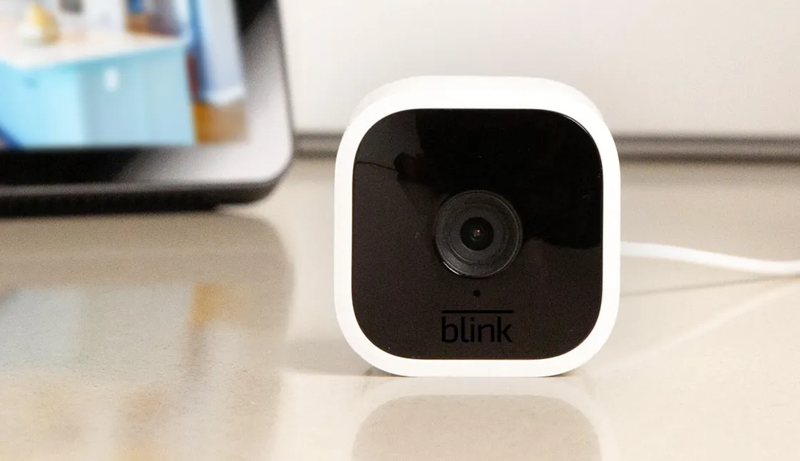
The Blink Mini is a plug-in camera and does not use batteries, which makes its reset process slightly different. The reset button is located on the bottom of the camera near the power port. Because the button is small and recessed, a paper clip is required to press it.
While the camera is powered on, press and hold the reset button for approximately 5 seconds. The LED indicator on the front will begin flashing red, then switch to blue, signaling the reset process has started. Once the light turns blue and begins blinking, the reset is complete.
Since the Blink Mini connects directly to Wi-Fi rather than using a Sync Module, it must be reconnected to your wireless network through the Blink app after resetting.
Resetting Blink XT and XT2 Cameras
Blink XT and XT2 cameras also have the reset button located inside the battery compartment. Remove the back cover and locate the small reset button near the batteries. Press and hold the button for 5 to 10 seconds until the LED indicator flashes red and blue.
These models use infrared motion detection, so resetting them helps resolve issues related to motion alerts and connectivity. After the reset, the camera will enter pairing mode and must be re-added to the Blink system through the app.
Understanding the specific reset process for each Blink camera model ensures a smooth reset experience and faster recovery from common performance issues.
Troubleshooting: Blink Camera Won’t Reset
When a Blink camera refuses to reset, it can be frustrating, especially when you are trying to resolve ongoing performance or connectivity issues. In most cases, the problem is not serious and can be fixed by checking a few common factors that interfere with the reset process. Understanding these issues helps you restore control without unnecessary delays.
Check Battery Power and Power Source
One of the most common reasons a Blink camera won’t reset is insufficient power. If the camera uses batteries, weak or nearly drained batteries may prevent the reset button from responding correctly. Even if the camera appears to be on, low power can interrupt the reset sequence before it completes.
Replace the batteries with fresh ones before attempting the reset again. For plug-in models like the Blink Mini, ensure the power cable is securely connected and the outlet is working properly. Avoid using loose cables or unstable power sources during the reset.
Ensuring a strong and stable power supply allows the camera to recognize the reset command and complete the process without interruption.
Make Sure the Reset Button Is Pressed Correctly
The reset button on Blink cameras is small and recessed, which makes it easy to miss or press incorrectly. Using a paper clip or pin, apply steady pressure directly into the reset hole. Pressing at an angle or using an object that is too thick may not activate the button.
Hold the reset button for the full recommended time, usually between 5 and 10 seconds. Releasing it too early may only restart the camera instead of performing a full reset. Watch the LED indicator closely for changes in color or flashing patterns, as this confirms the reset is taking place.
Repeating the step carefully often resolves reset failures caused by improper button presses.
Observe LED Light Behavior Carefully
The LED indicator provides important feedback during the reset process. If the light does not change color or flash after holding the reset button, the camera may not be entering reset mode. This could indicate a power issue, button problem, or internal software freeze.
If the light flashes briefly and then stops, wait at least 30 seconds before trying again. Avoid pressing the reset button multiple times in quick succession, as this can confuse the reset sequence.
Understanding LED patterns helps determine whether the camera is responding or if further troubleshooting is needed.
Try Resetting Through the Blink App and Sync Module
If a physical reset does not work, try removing the camera from the Blink app and power-cycling the Sync Module. Unplug the Sync Module for 10 to 15 seconds, then plug it back in and allow it to fully restart.
Once the module is online, attempt the reset process again. This refreshes system communication and can resolve software-related issues preventing the camera from resetting properly.
Consider Firmware or Hardware Issues
If none of the above steps work, the issue may be related to outdated firmware or a hardware fault. Ensure the Blink app is updated and check whether the camera responds at all. If the device remains unresponsive, contacting Blink support may be necessary for further assistance or replacement options.
Frequently Asked Questions (FAQs)
How Do You Reset a Blink Camera Properly?
You can reset a Blink camera by locating the small reset button on the device and pressing it with a paper clip or similar tool. Hold the button for about 5 to 10 seconds until the LED light starts flashing red and blue. This light pattern confirms the camera has entered reset mode. Once released, the camera clears its previous settings and becomes ready for setup again through the Blink app. You should keep the camera powered on and avoid interrupting the process to ensure the reset completes successfully.
Does Resetting a Blink Camera Delete Recorded Videos?
Resetting a Blink camera does not delete your Blink account or cloud-stored videos. However, it does remove the camera from your system and clears its local configuration. Any clips saved in your Blink cloud storage remain accessible through your account, depending on your subscription plan. You will need to re-add the camera in the app after the reset, but your previously recorded videos will still be available unless they have expired based on storage limits.
Why Won’t Your Blink Camera Reset?
If your Blink camera will not reset, the most common cause is low battery power or an unstable power source. Weak batteries can prevent the reset button from functioning properly. Another reason could be incorrect button usage, such as not holding it long enough or pressing the wrong opening. You should also watch the LED light behavior, as no light change usually indicates a power or hardware issue that needs to be addressed first.
How Long Does It Take to Reset a Blink Camera?
The reset process itself usually takes less than one minute. Holding the reset button for 5 to 10 seconds initiates the reset, and the camera then takes a short time to reboot and enter pairing mode. You should wait until the LED light begins flashing blue, which signals the reset is complete. Allowing extra time ensures the camera fully clears its previous settings before setup.
Do You Need Wi-Fi to Reset a Blink Camera?
You do not need Wi-Fi to physically reset a Blink camera using the reset button. However, Wi-Fi is required after the reset to reconnect the camera to your system through the Blink app. Without a stable internet connection, you will not be able to complete the setup or restore normal camera functionality. Ensuring Wi-Fi is available before resetting saves time during reconfiguration.
When Should You Reset a Blink Camera?
You should reset a Blink camera when it frequently disconnects, fails to respond in the app, stops detecting motion, or after changing your Wi-Fi network. Resetting is also recommended before selling or relocating the camera to a new location. Performing a reset helps clear corrupted settings and restores stable communication between the camera, the app, and the network, ensuring reliable performance.
Conclusion
Keeping a Blink camera working smoothly is essential for maintaining reliable home security. When performance issues arise, knowing the correct reset process can quickly restore proper functionality and eliminate common connection or responsiveness problems. A reset helps clear temporary glitches and prepares the device for a fresh setup.
Understanding how to reset blink camera systems allows you to troubleshoot confidently without relying on technical support for minor issues. Whether the camera loses connection, stops detecting motion, or needs to be reinstalled on a new network, a proper reset ensures the device returns to a stable and responsive state.
Applying the right reset steps also helps protect your time and prevents unnecessary frustration. With a clear approach and basic preparation, the camera can be restored efficiently, allowing your security system to continue monitoring without interruption and delivering consistent peace of mind.